How to Find a File on Mac When You Can't Remember the Name

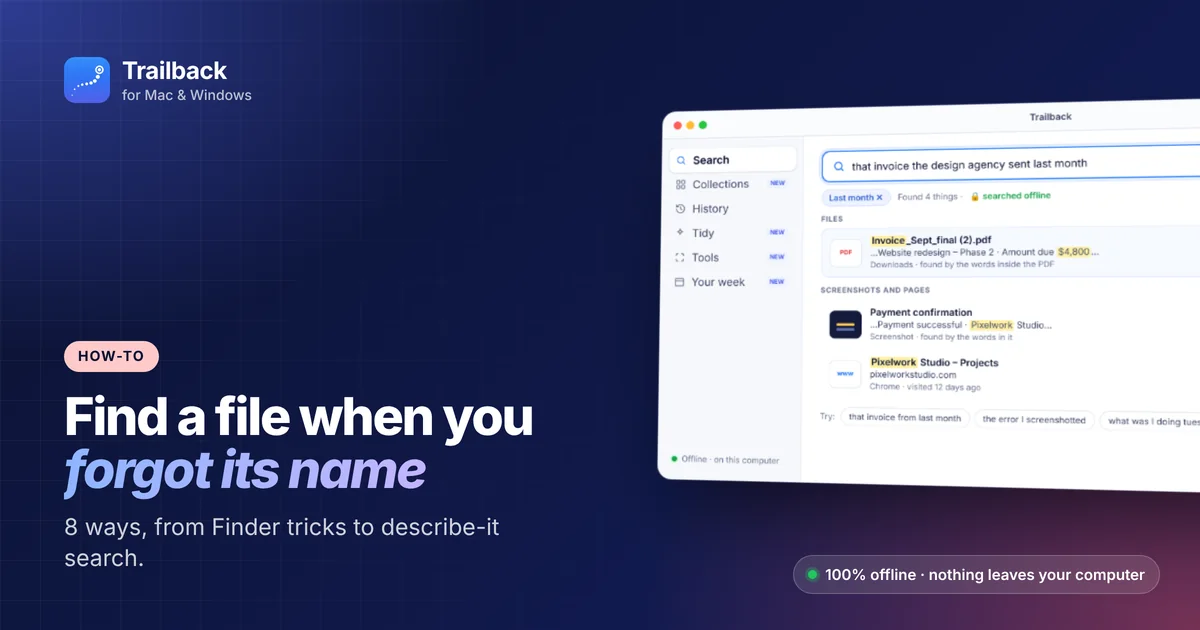
You downloaded it. You know you did. But it was called something like doc_2026_final(3).pdf, and now you can't find it.
Here are 8 ways to find a file on your Mac, starting with the quickest built-in tricks and ending with the method that works even when you remember almost nothing.
1. Check Recents and Downloads first
In Finder, click Recents in the sidebar. It lists files you've recently opened, sorted by date. Then check Downloads with View → as List, sorted by Date Added. Many "lost" files are sitting right there.
2. Search by what's inside the file
Spotlight (⌘Space) searches the text inside many documents, not just names. Type a phrase you remember from the file, like a company name, an amount or a heading.
3. Use Spotlight filters
Narrow results with filters in Spotlight or the Finder search bar:
kind:pdf(alsoimage,presentationorspreadsheet)date:yesterday,created:todayormodified:today- Combine them:
kind:pdf invoice modified:today
4. Use "Where from" for downloaded files
macOS remembers which website a downloaded file came from. Select a file, press ⌘I, and look at Where from under More Info. It's a quick way to confirm you've found the right download.
5. Use tags and Smart Folders
If you search for the same kind of file often, create a Smart Folder (Finder → File → New Smart Folder) with your conditions, like "PDFs added in the last 30 days". It updates by itself.
6. Look in the app that made it
Many apps keep their own recent files list. Right-click the app's icon in the Dock, or use File → Open Recent inside the app.
7. Use Terminal (for the brave)
mdfind "invoice" searches the Spotlight index from Terminal. mdfind -onlyin ~/Downloads "invoice" searches just your Downloads folder.
8. Describe it, and let Trailback find it
All the methods above need you to remember something specific: a name, the exact words, or the folder. Often you only remember the situation:
- "the PDF the design agency sent last month"
- "that screenshot of the error"
- "the article I read on Tuesday about saving tax"
That's what Trailback is built for. Type it the way you remember it. Trailback searches:
- files and PDFs, by their contents;
- screenshots and images, by the text in them;
- web pages you visited, even after you clear your browser history;
- what you were doing at a time, through History ("Tuesday afternoon").
"Last month" and "from WhatsApp" turn into filters automatically, files appear first, and each result shows the matching line, so you know it's the right one before opening it.
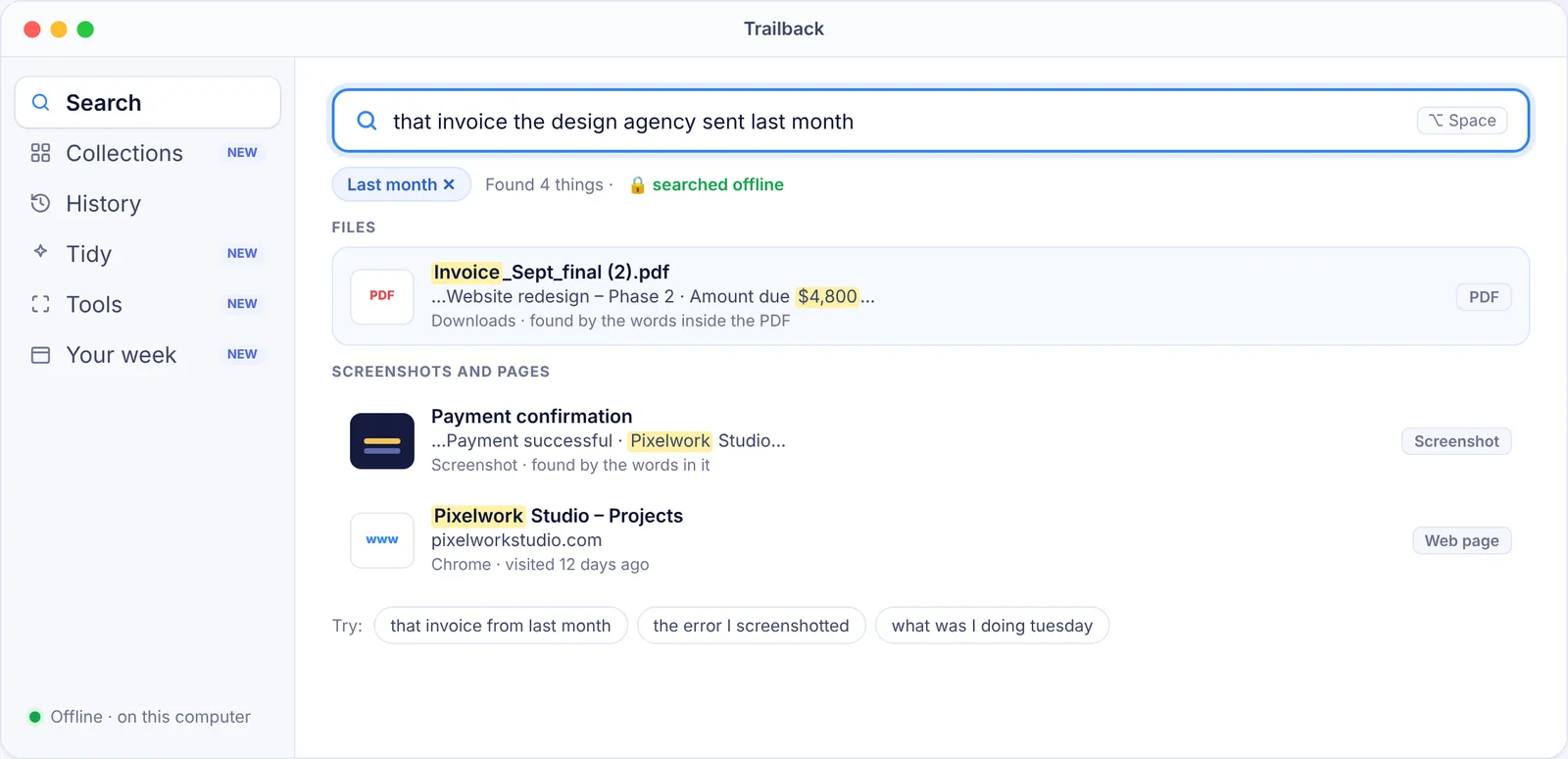
Everything stays on your Mac, and it works offline. There's a 7-day free trial, and it's on Windows too.
Stop losing files in the first place
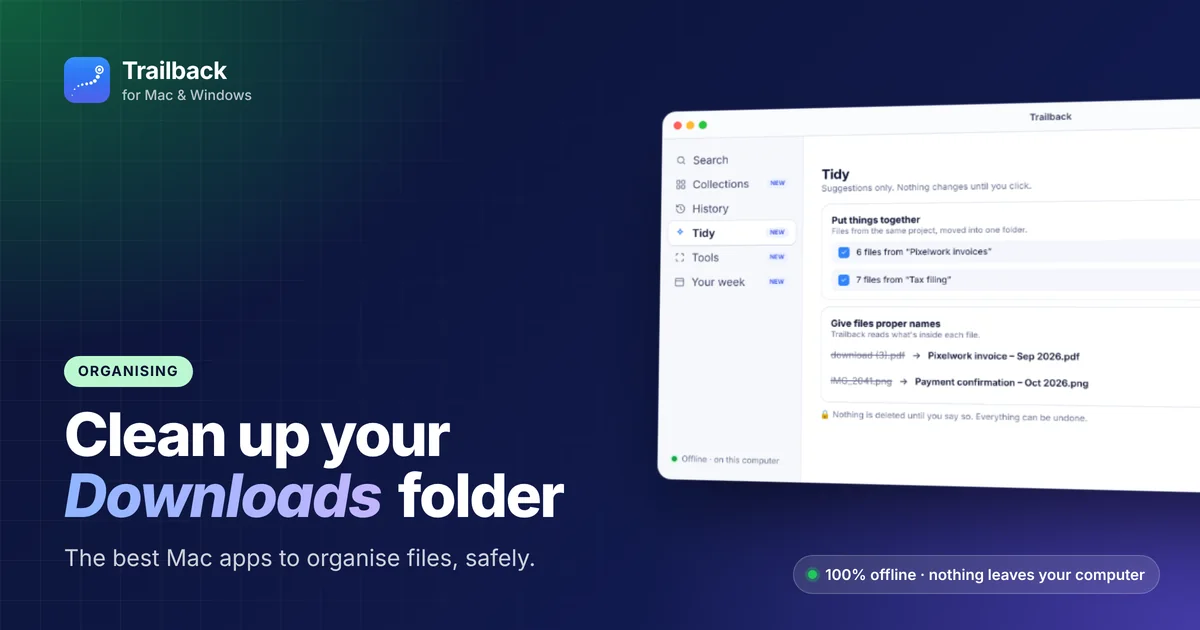
- Give downloads proper names. Trailback's Tidy suggests names based on what's inside each file, like turning
download (3).pdfintoPixelwork invoice – Sep 2026.pdf. - Put related files together. See our guide to organising files on a Mac.
- Search your screenshots by text. Here's how to search the text inside screenshots on Mac.
Find anything on your computer by describing it.
Files, PDFs, the words in your screenshots and the pages you visited. 100% offline. Your data never leaves your computer.
Frequently asked questions
How do I find a file on my Mac if I forgot the name?
Search for words that are inside the file with Spotlight, check Recents and Downloads sorted by date, or use a describe-it search like Trailback ("the invoice from last month").
Why is Spotlight not finding my file?
The folder may be excluded from Spotlight (System Settings → Spotlight), the index may need rebuilding, or the words you're typing aren't in the file. See Spotlight alternatives for Mac.
Can I find a web page I closed and deleted from history?
Not with the browser alone. Trailback remembers pages you visited (with its free browser extension), so you can find them even after you clear your history.
Pavan is the founder of Trailback, a private, offline app for Mac and Windows that helps you find anything on your computer by describing it. He builds it at Hara Infotech in Hyderabad.
Keep reading
Best Spotlight Alternatives for Mac: 7 Better Ways to Search
When Spotlight can't find it, these Mac search apps can. What each one is best at, and which to choose.
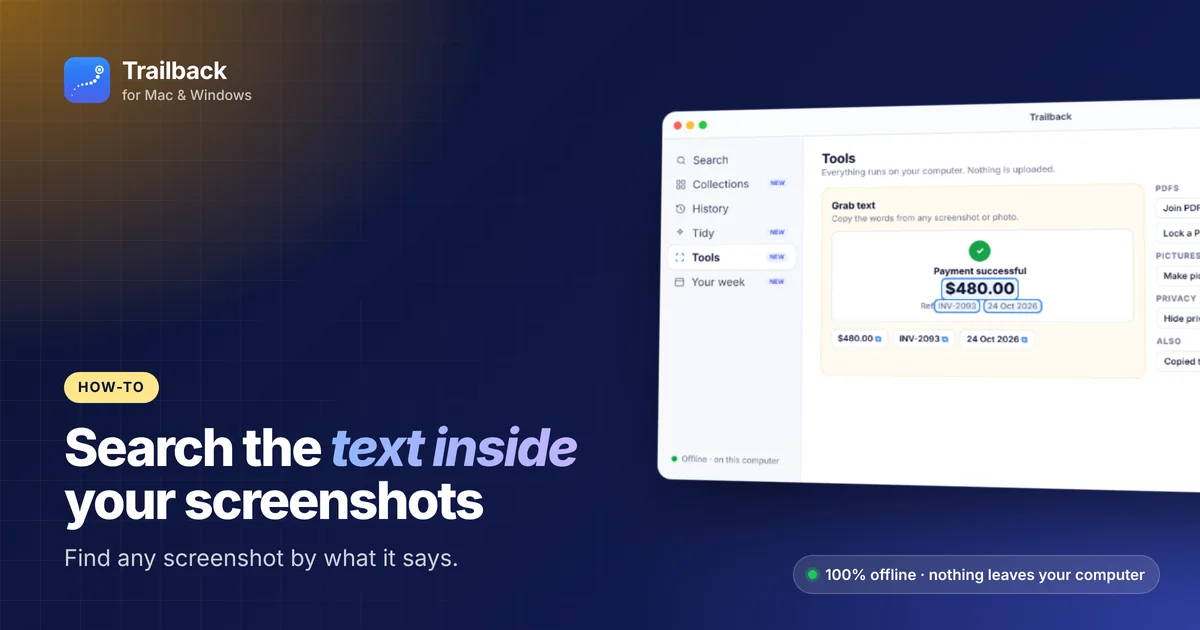
How to Search the Text Inside Screenshots on Mac
You took a screenshot so you wouldn't forget. Here's how to find it again by the words in it.
Best Mac Apps to Organize Files and Clean Up Your Downloads Folder
How to turn a Downloads folder full of "download (3).pdf" into something you can actually use, with built-in tools and the best Mac apps.