How to Search the Text Inside Screenshots on Mac

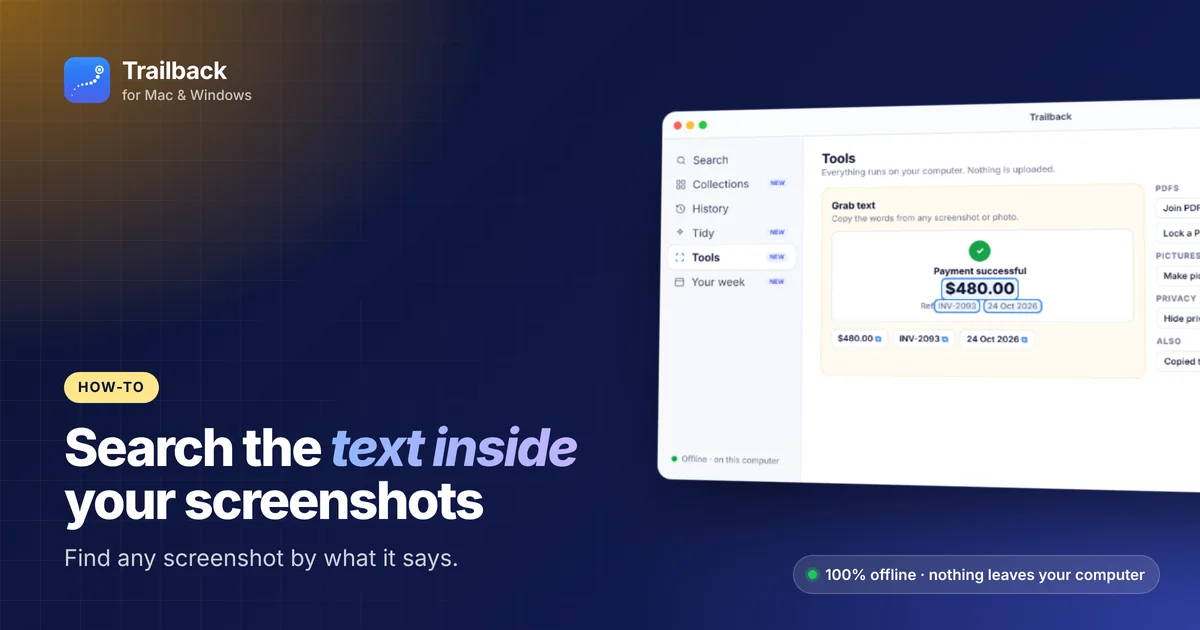
Screenshots are how we remember things now: an error message, a payment confirmation, a quote, a tracking number. The problem is that macOS names them all Screenshot 2026-10-12 at 14.03.11.png. After a few months you have hundreds, and no idea which one says what.
Here's how to search the text inside your screenshots on a Mac, and copy that text out.
First: put screenshots in one place
By default, screenshots land on your Desktop. Press ⌘⇧5 → Options → Save to and pick a dedicated Screenshots folder. Your Desktop stays clear and everything is in one place.
Option 1: Live Text (built in, one screenshot at a time)
macOS can read text inside images. Open a screenshot in Preview or press Space for Quick Look, then select the text with your cursor and copy it. Phone numbers, dates and links become clickable.
Limit: it works on one image at a time. It doesn't search across all your screenshots.
Option 2: Spotlight and Photos
If your screenshots are in the Photos app, you can search for words that appear in them inside Photos, and Spotlight can show matching photos too.
Limit: this only covers your Photos library, not the screenshots in your Finder folders, and you can't combine it with "last week" or "from Slack".
Option 3: Screenshot apps with OCR
CleanShot X and Shottr can capture text straight from the screen (OCR), and TextSniper is a dedicated text-capture app.
Limit: they're great for grabbing text now. They don't help you find an old screenshot you took months ago.
Option 4: Search every screenshot at once with Trailback
Trailback reads the text in every screenshot on your Mac, on your computer, offline. Then you search them like documents:
- "the screenshot where it said payment failed"
- "error screenshot from last week"
- "tracking number"
Results show the matching words highlighted, next to your files and web pages. When you take a new screenshot, a small card offers "Copy all text". For any older image, open Grab text to copy amounts, dates, links and reference numbers with one click.
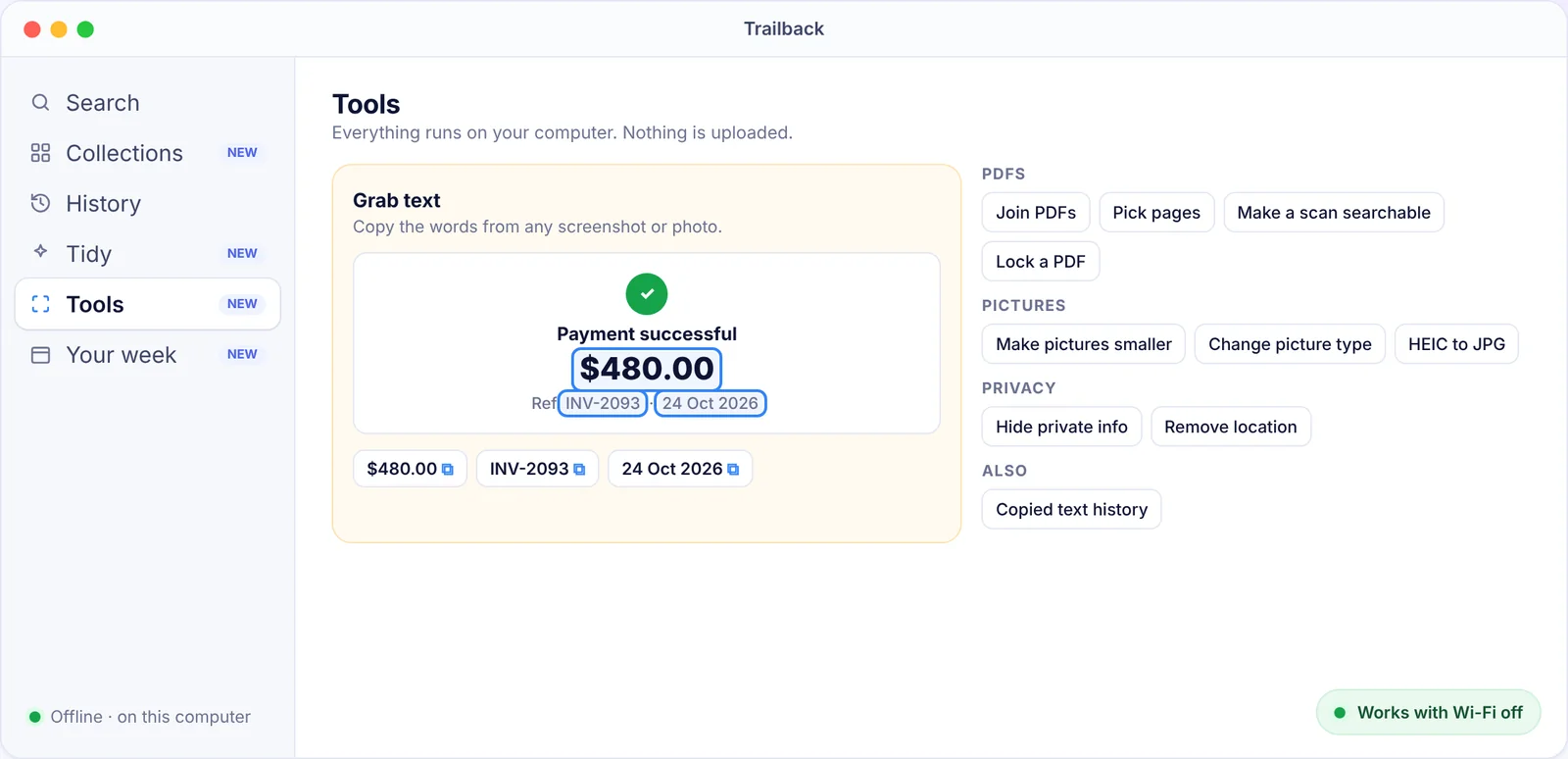
Before you share a screenshot, Trailback's Hide private info blurs card numbers, emails and phone numbers. That runs offline too.
Which option should you use?
| You want to... | Use |
|---|---|
| Copy text from one screenshot | Live Text (built in) |
| Grab text as you capture | CleanShot X, Shottr or TextSniper |
| Find an old screenshot by what it said | Trailback |
| Do it all without uploading anything | Live Text + Trailback (both offline) |
Avoid online OCR websites for private screenshots
Free "image to text" websites upload your image. That's a bad idea for bank details, IDs or work chats. Every option in this guide runs on your Mac. More in the best privacy apps for Mac.
Related guides
- How to find a file on Mac when you can't remember the name
- Best Spotlight alternatives for Mac
- Top 10 Mac apps in 2026
Find anything on your computer by describing it.
Files, PDFs, the words in your screenshots and the pages you visited. 100% offline. Your data never leaves your computer.
Frequently asked questions
Can I search for text in screenshots on a Mac?
Yes. Live Text lets you select text in a single image, and Photos can search text in your library. To search every screenshot in your folders at once, use an app like Trailback.
How do I copy text from a screenshot on a Mac?
Open it in Preview or Quick Look, select the text with your cursor and press ⌘C. In Trailback, use "Copy all text" or Grab text.
Is OCR on a Mac private?
Live Text and Trailback both read text on your Mac without uploading anything. Online OCR websites upload your image.
Pavan is the founder of Trailback, a private, offline app for Mac and Windows that helps you find anything on your computer by describing it. He builds it at Hara Infotech in Hyderabad.
Keep reading
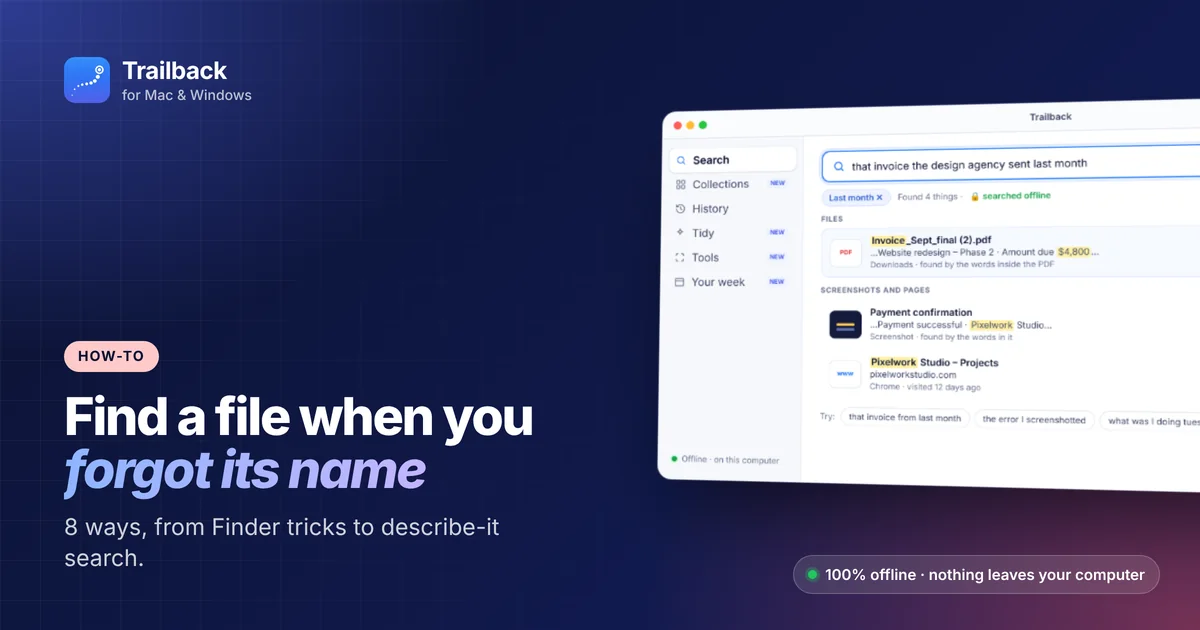
How to Find a File on Mac When You Can't Remember the Name
Eight ways to find a lost file on your Mac, from built-in tricks to searching by what you remember.
Best Privacy Apps for Mac: Offline Tools That Keep Your Data Yours
The apps and settings that keep your files, passwords and browsing private on a Mac, with a focus on tools that work offline.
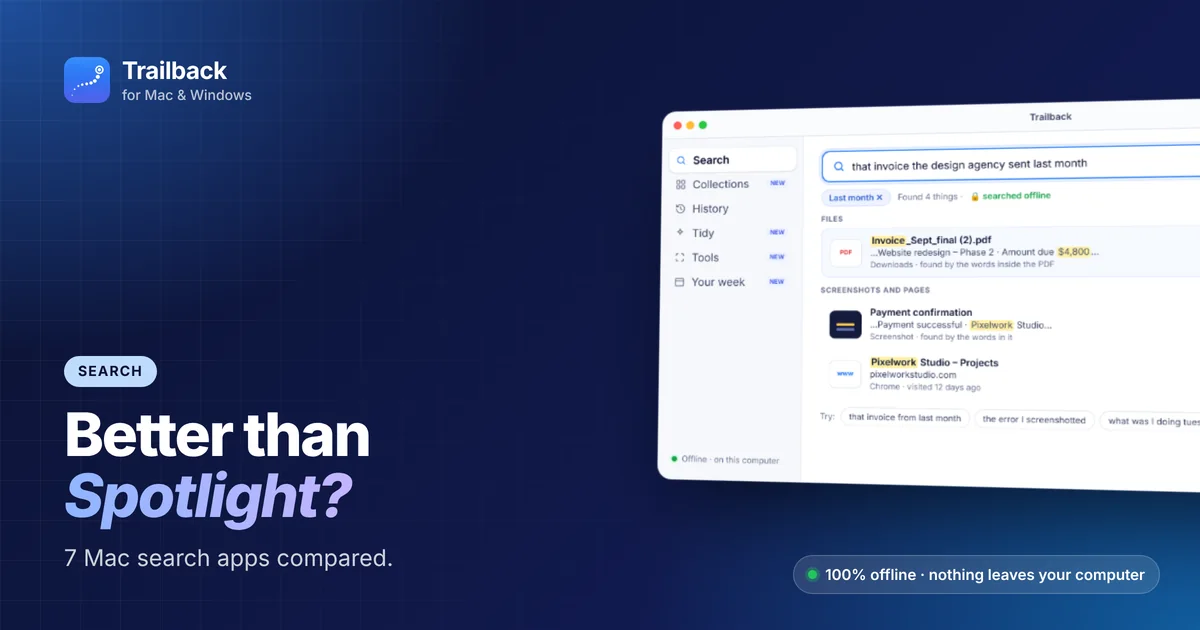
Best Spotlight Alternatives for Mac: 7 Better Ways to Search
When Spotlight can't find it, these Mac search apps can. What each one is best at, and which to choose.