How to Find a File on Windows 11 When You Forgot the Name

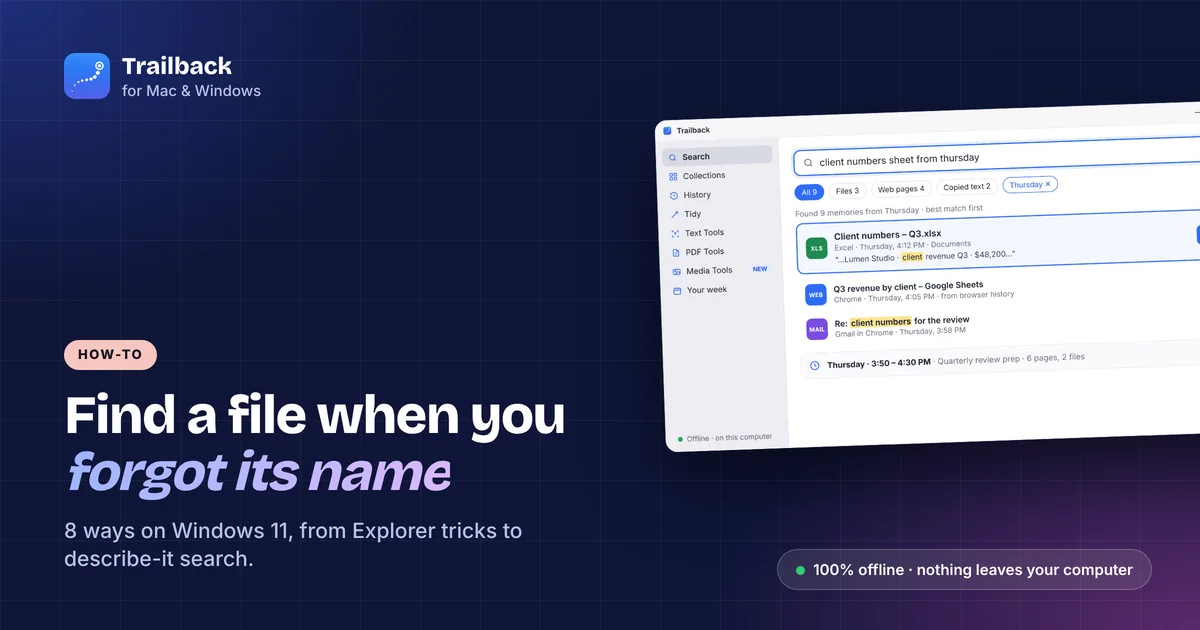
You saved it. You're sure you did. But it was called something like Document (3).pdf or IMG_4823.jpg, and now it's nowhere.
Here are 8 ways to find a file on Windows 11 (they work on Windows 10 too), starting with the quickest built-in tricks and ending with the one that works when you remember almost nothing.
1. Check Recent files and Downloads first
Open File Explorer and click Home. The Recent section lists files you opened lately. Then open Downloads, switch to Details view, and sort by Date modified. Many "lost" files are sitting right there under a name you didn't expect.
2. Search by the words inside the file
Windows Search can look inside documents, not just at names. In File Explorer, go to the folder, click the search box, and type a phrase you remember from the file: a company name, an amount, a heading.
If it finds nothing, content search may be off for that folder. Open Settings → Privacy & security → Searching Windows and choose Enhanced, or add the folder under Classic mode.
3. Use File Explorer search filters
Narrow results with filters typed straight into the search box:
kind:document(alsopicture,video,music)ext:pdffor a file typedatemodified:this weekordatemodified:10/2026size:>5MB
Combine them: ext:pdf invoice datemodified:last month.
4. Look in the app that made it
Word, Excel, Acrobat and most apps keep their own recent list under File → Open → Recent. Browsers have a Downloads page (Ctrl + J) that shows every file they saved and where.
5. Check OneDrive
If OneDrive is on, files in Desktop, Documents and Pictures may be "online only". Right-click the folder and choose Always keep on this device, or search at onedrive.com. Files can also sit in OneDrive → Recycle bin for 30 days.
6. Try Everything
Everything is a free app that finds any file on your PC by name, instantly, far faster than Windows Search. If you remember any part of the name, this is the quickest fix. It doesn't search inside files.
7. Check the Recycle Bin and File History
Open the Recycle Bin on the desktop and sort by Date Deleted. If you use File History or OneDrive backup, right-click the folder where the file lived, choose Properties → Previous Versions, and restore it from there.
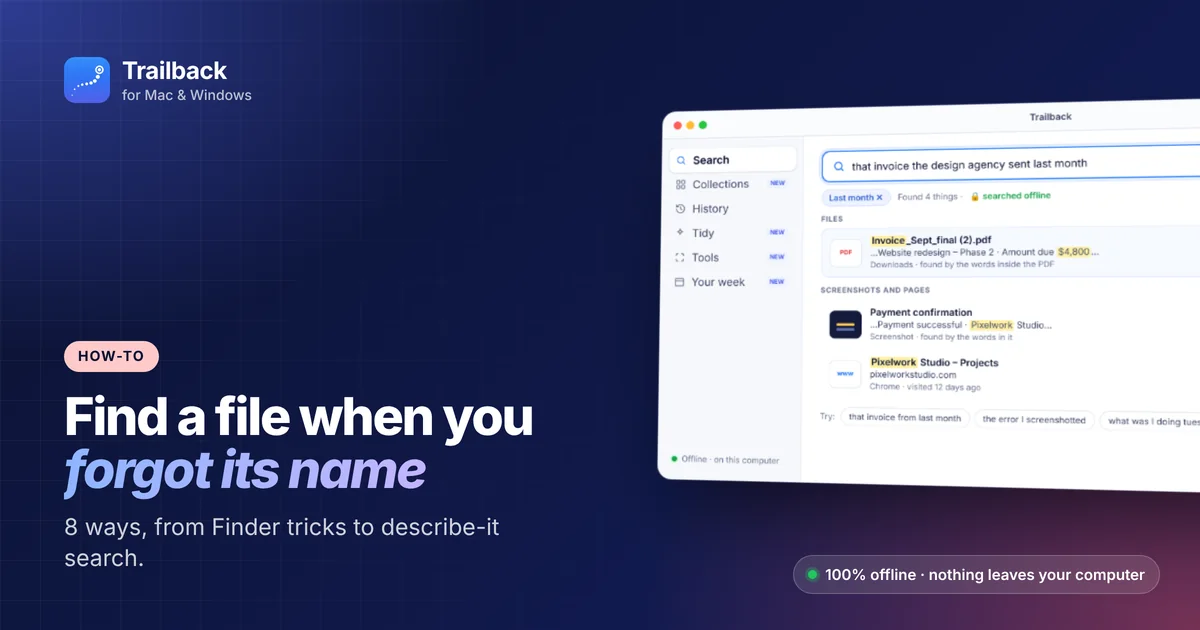
8. Describe it, and let Trailback find it
Every method above needs you to remember something specific: part of the name, the exact words, or the folder. Often you only remember the situation:
- "the PDF the agency sent last month"
- "that screenshot of the error"
- "the receipt I downloaded on Tuesday"
That's what Trailback is built for. Type it the way you remember it, and it searches:
- files and PDFs, by their contents;
- screenshots and images, by the text in them;
- web pages you visited, even after you cleared your browser history;
- what you were doing at a time ("Tuesday afternoon"), so you can reopen everything from then.
"Last month" and "from Gmail" turn into filters by themselves, files appear first, and each result shows the matching line, so you know it's the right one before you open it.
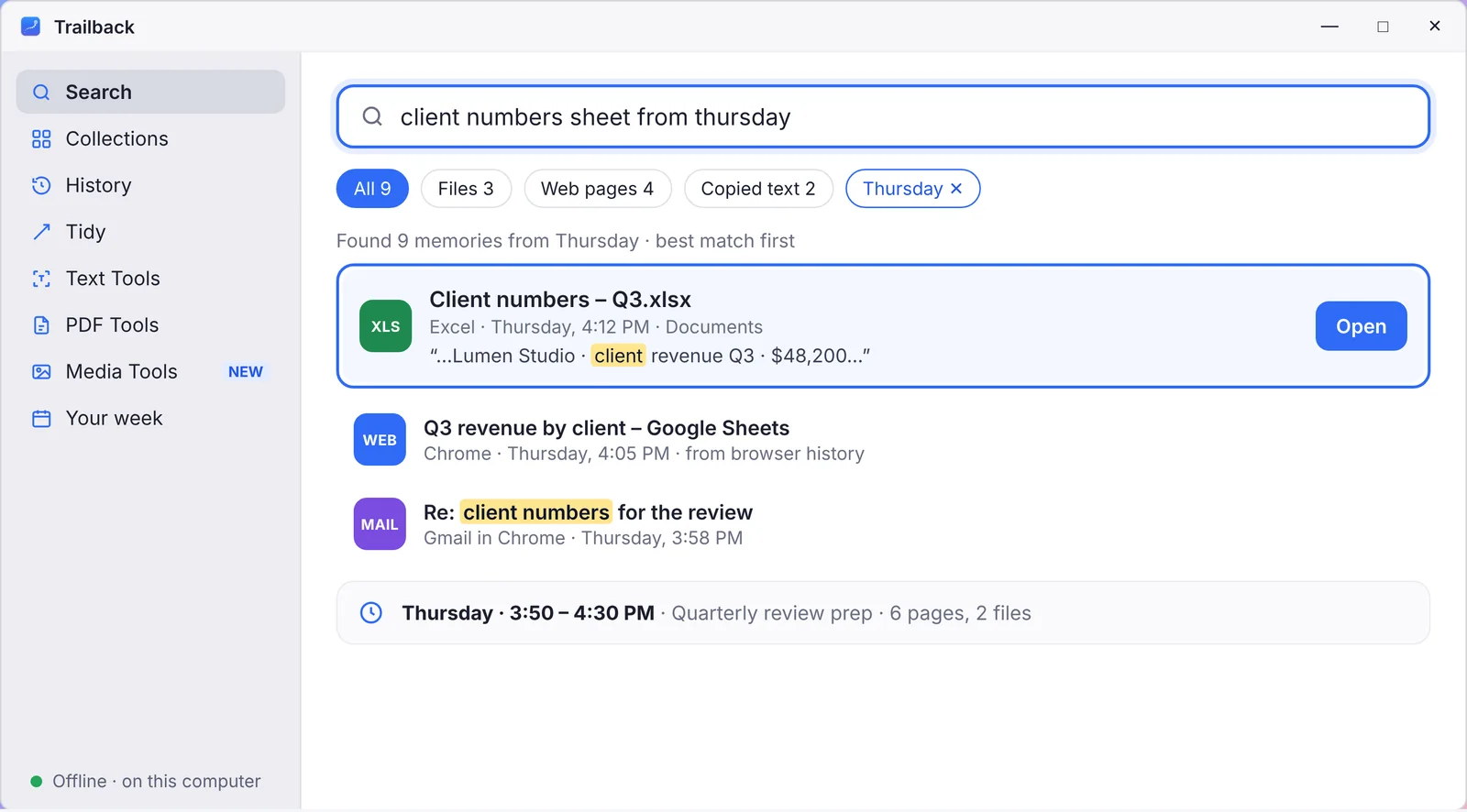
It works fully offline, so nothing leaves your PC, and it's $19 one-time with a 7-day money-back guarantee. It's on Mac too.
Stop losing files in the first place
- Give downloads real names. Trailback's Tidy suggests names based on what's inside each file, turning
Document (3).pdfintoWater bill – September 2026.pdf. - Keep Downloads sorted by date. In File Explorer, set Downloads to group by Date modified once, and it stays that way.
- Search your screenshots by text. See how to search the text inside screenshots on Windows.
Find anything on your computer by describing it.
Files, PDFs, the words in your screenshots and the pages you visited. 100% offline. Your data never leaves your computer.
Frequently asked questions
How do I find a file on Windows 11 if I forgot the name?
Search for words inside the file from File Explorer, check Recent and Downloads sorted by date, or use a describe-it search like Trailback ("the invoice from last month").
Why isn't Windows Search finding my file?
Content search may be set to Classic mode and not include that folder, the index may still be building, or the words you typed aren't in the file. Try Enhanced mode in Settings → Privacy & security → Searching Windows, or use Everything for file names.
How do I find recently downloaded files on Windows?
Open File Explorer → Downloads and sort by Date modified, or press Ctrl + J in your browser to see its download list with locations.
Can I find a file I deleted?
Check the Recycle Bin first. If it's gone from there, use Previous Versions (File History) or OneDrive's recycle bin, which keeps files for 30 days.
Pavan is the founder of Trailback, a private, offline app for Mac and Windows that helps you find anything on your computer by describing it. He builds it at Hara Infotech in Hyderabad.
Keep reading
How to Search Text Inside Screenshots on Windows 11
Your screenshots are full of text you can't search. Four ways to fix that on Windows, including one that searches all of them at once.
The Best Windows 11 Apps in 2026: 20 Picks Worth Installing
Twenty Windows apps that earn their place, sorted by the job they do, with free picks in every group.
How to Find a File on Mac When You Can't Remember the Name
Eight ways to find a lost file on your Mac, from built-in tricks to searching by what you remember.