How to Search Text Inside Screenshots on Windows 11

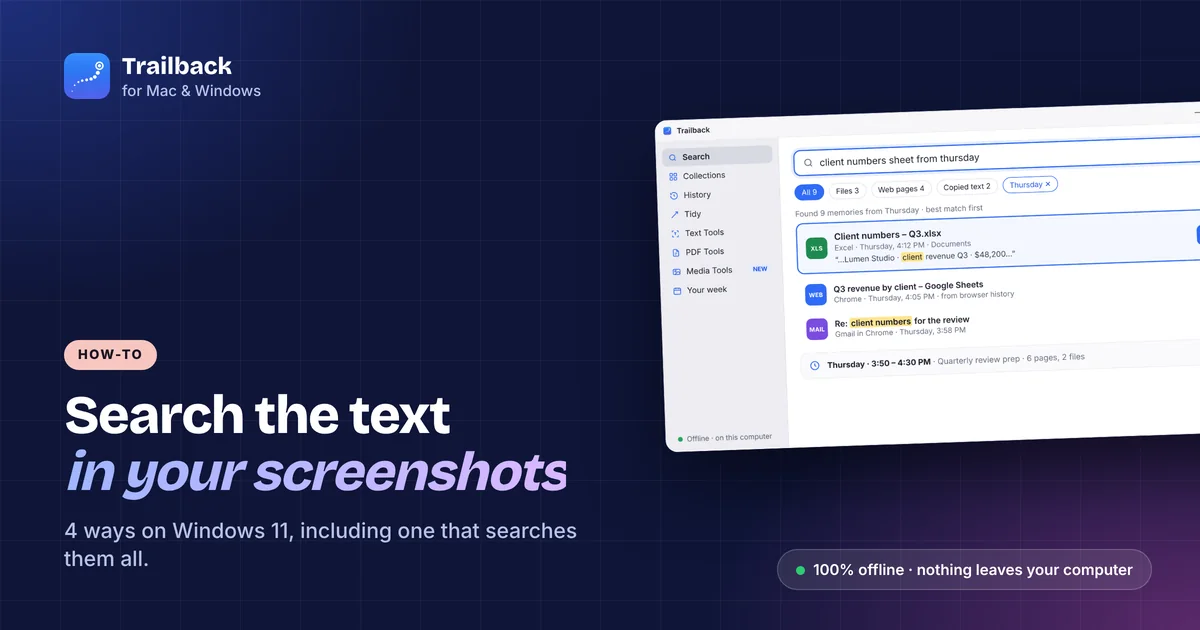
Screenshots are the fastest way to save something and the slowest way to find it again. Windows names them Screenshot 2026-10-12 140311.png, and nothing on your PC searches the words inside them.
Here are 4 ways to search text in screenshots on Windows 11, from copying text out of one screenshot to searching all of them at once.
1. Snipping Tool: copy text from one screenshot
Windows 11's Snipping Tool can read the text in a screenshot. Open the screenshot in Snipping Tool, click Text actions (the icon in the toolbar), and the text becomes selectable. You can copy all of it or just the part you need, and there's a Quick redact option for emails and phone numbers.
Good for: grabbing a code, an address or a table from one screenshot. Not for: finding which screenshot has the thing you're looking for.
2. PowerToys Text Extractor: copy text from anything on screen
Microsoft PowerToys (free) includes Text Extractor. Press Win + Shift + T, drag a box over any text on screen, and it's on your clipboard. It works on screenshots, videos paused on a frame, and apps that won't let you select text.
Again, it's one screenshot at a time, and you have to open it first.
3. Photos app: find text in your library
The Photos app in Windows 11 recognises text in pictures and has started letting you search for it, depending on your version. Open Photos, type a word in the search box, and see whether it finds screenshots containing it. Results vary by build, and it only covers folders Photos knows about.
4. Trailback: search every screenshot by its text, offline
Trailback reads the text in every screenshot you take and makes all of it searchable, along with your files, PDFs and the web pages you visit. Type what you remember:
- "screenshot with the pricing table"
- "the error message from yesterday"
- "receipt from the hardware shop"
It finds the right screenshot in under a second, shows the matching words, and opens it. It also finds amounts, dates and order numbers inside screenshots, so a receipt is found by the total.
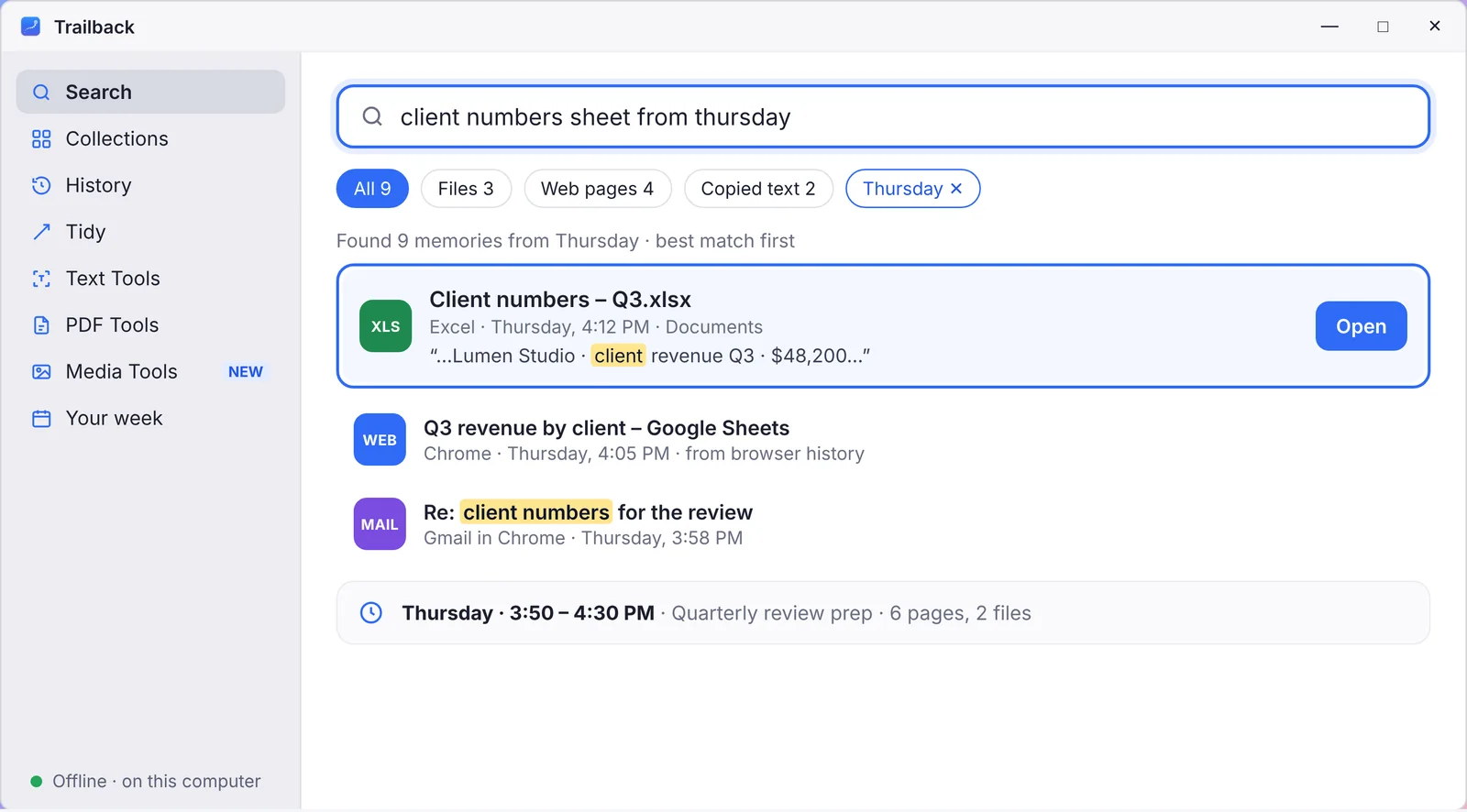
Privacy: everything runs on your PC. Nothing is uploaded, there's no account, and passwords and card numbers are skipped. It works on Windows 10 and 11, and on Mac, for $19 one-time.
Tips for screenshots you can find later
- Take screenshots with Win + Shift + S. They go to the clipboard and to Pictures → Screenshots, so they're in one place.
- Don't rely on file names. The text inside the screenshot is the better handle, which is why text search matters.
- Blur before sharing. Trailback's Media Tools can blur card numbers, emails and phone numbers in a screenshot before you send it.
Find anything on your computer by describing it.
Files, PDFs, the words in your screenshots and the pages you visited. 100% offline. Your data never leaves your computer.
Frequently asked questions
Can Windows 11 search text inside screenshots?
Not from File Explorer. Snipping Tool and PowerToys can copy text from one screenshot you open, and the Photos app recognises text in some versions. To search all your screenshots by their text, use an app like Trailback.
How do I extract text from a screenshot on Windows?
Open it in Snipping Tool and click Text actions, or install PowerToys and press Win + Shift + T over the text.
Does this work offline?
Snipping Tool, PowerToys and Trailback all read text on your PC without sending the image anywhere.
Does Trailback read old screenshots too?
Yes. When you install it, it reads your existing screenshots and files, so they're searchable from day one.
Pavan is the founder of Trailback, a private, offline app for Mac and Windows that helps you find anything on your computer by describing it. He builds it at Hara Infotech in Hyderabad.
Keep reading
How to Find a File on Windows 11 When You Forgot the Name
Eight ways to find a lost file on Windows 10 or 11, from built-in tricks to searching by what you remember.
How to Search the Text Inside Screenshots on Mac
You took a screenshot so you wouldn't forget. Here's how to find it again by the words in it.
Clipboard History on Mac and Windows: See Everything You Copied
You copied it an hour ago and pasted over it. Here's how to get it back, on Mac and on Windows.