Windows 11 Search Not Working? 10 Fixes That Work

You click the search box on the taskbar, type the name of a file you know is there, and get nothing. Or the box won't even open. Or File Explorer search spins forever.
Windows Search depends on two things: the Windows Search service that answers your searches, and the index, a list Windows keeps of your files. Almost every problem is one of those two. Here are 10 fixes for Windows 11 (most work on Windows 10 too), from the quickest to the most thorough.
1. Restart and install updates
A restart clears a stuck search process more often than anything else. Then open Settings → Windows Update and install anything waiting: search bugs are often fixed in updates, and a half-installed update can itself break search until you restart.
2. Restart Search in Task Manager
Press Ctrl + Shift + Esc to open Task Manager. On the Processes tab, find Search, right-click it and choose End task. It starts again by itself the next time you search. If the taskbar itself is frozen, right-click Windows Explorer in the same list and choose Restart.
3. Make sure the Windows Search service is running
- Press Windows + R, type
services.mscand press Enter. - Find Windows Search in the list and double-click it.
- Set Startup type to Automatic (Delayed Start), click Start if it's stopped, then OK.
4. Rebuild the index
This is the fix that works most often:
- Open Settings → Privacy & security → Searching Windows.
- Scroll down and click Advanced indexing options.
- Click Advanced, then Rebuild, and confirm.
Windows throws away the old index and builds a new one. Search will be incomplete until it finishes, which can take a few hours on a full PC. Keep it plugged in.
5. Check which folders are searched
In Settings → Privacy & security → Searching Windows:
- Classic searches only your libraries and desktop. Enhanced searches your whole PC. If your file lives somewhere else, switch to Enhanced, or add its folder under Classic with Customize search locations.
- Look at Exclude folders from enhanced search. A folder listed there is never searched.
6. Turn on search inside files
If Windows finds files by name but not by the words inside them, the file type may be indexed by name only. In Advanced indexing options, click Advanced → File Types, select the type (for example .docx or .txt) and choose Index Properties and File Contents.
For folders that aren't indexed, File Explorer can still look inside files, just slowly: in File Explorer, click ⋯ → Options → Search and tick Always search file names and contents.
7. Know the limits with network and mapped drives
Windows doesn't index network shares or mapped drives on your PC. Searching them is slow, and searching inside their files often doesn't work at all. If the files are on a company server, the server's own search (or SharePoint/OneDrive search in the browser) usually works better.
8. Repair Windows system files
If nothing above helps, damaged system files may be the cause. Right-click Start, open Terminal (Admin), and run these two commands one after the other:
DISM /Online /Cleanup-Image /RestoreHealth
sfc /scannow
Each can take a while. Restart when both are done.
9. Find it by name with Everything
While Windows Search rebuilds, the free app Everything finds any file on your PC by name, instantly. It doesn't search inside files, but if you remember any part of the name, it's the quickest way to get your file back today.
10. When you can't remember the name: describe it
Sometimes search is working and still can't help, because you don't remember the file's name or any exact words in it. You remember what it was: "the invoice from the design agency last month", "the spreadsheet I had open on Thursday".
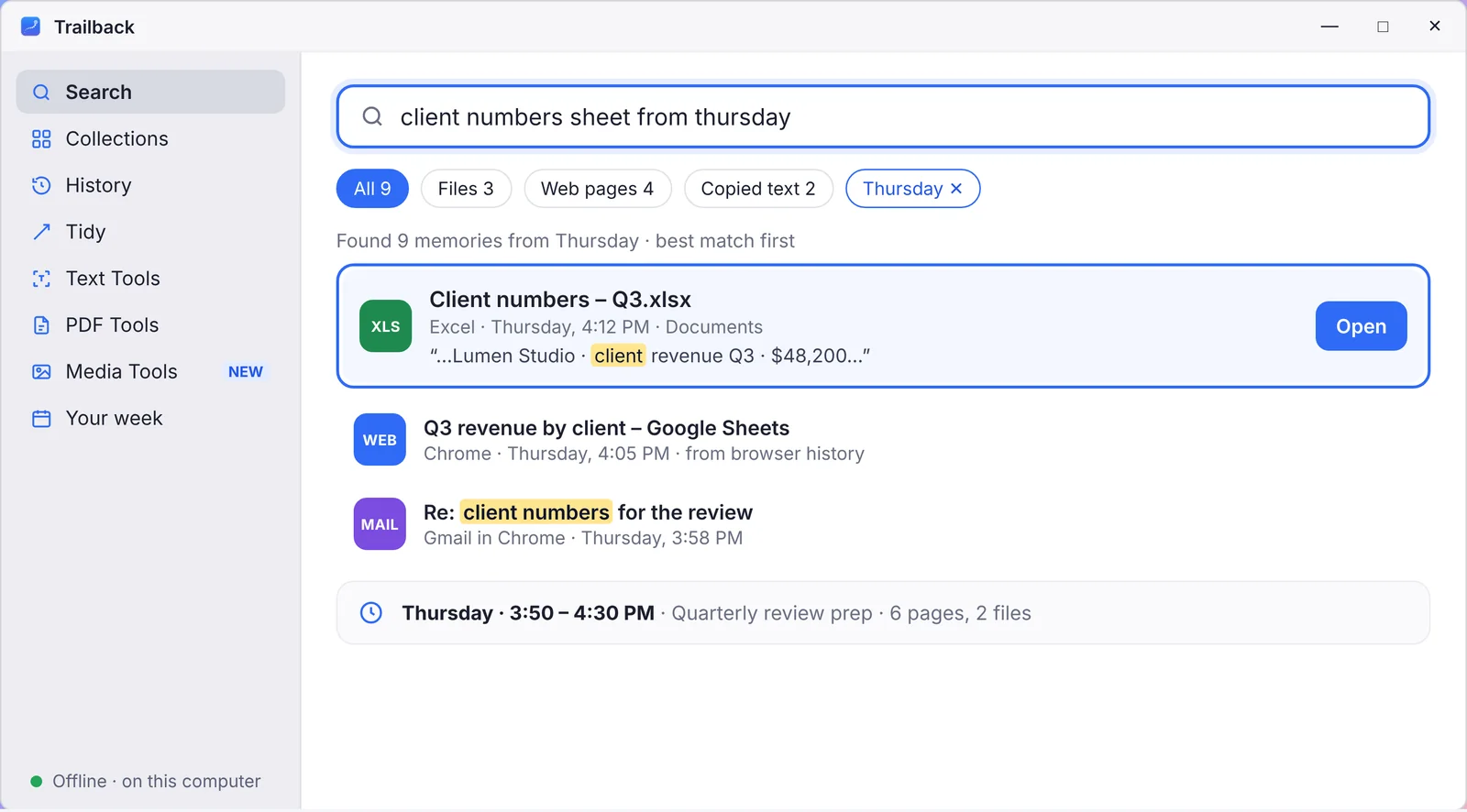
That's what Trailback is for. It keeps a private memory of your files, PDFs, the words in your screenshots and the web pages you visited, and you search it by describing what you remember:
- "last month" or "Thursday afternoon" become a date filter by themselves;
- it reads the words inside PDFs and documents, so "invoice" finds
Document (3).pdf; - each result shows the matching line, so you know it's the right one before you open it.
It works fully offline: nothing leaves your PC. It's on Mac too. See pricing.
Keep search working
- Let the index finish after big updates before deciding search is broken.
- Keep Downloads tidy and sorted by date, where most "lost" files end up.
- Know the other ways to find a file. See 8 ways to find a file on Windows 11 when you forgot the name and how to search text in screenshots on Windows.
Find anything on your computer by describing it.
Files, PDFs, the words in your screenshots and the pages you visited. 100% offline. Your data never leaves your computer.
Trailback - a searchable memory of your computer activity
Frequently asked questions
Why is Windows Search not working?
Most often the Search process is stuck, the Windows Search service is stopped, or the index is damaged or incomplete. Restart Search in Task Manager, check the service in services.msc, then rebuild the index.
How do I rebuild the search index in Windows 11?
Open Settings → Privacy & security → Searching Windows → Advanced indexing options, click Advanced, then Rebuild. It can take a few hours.
Why can't Windows find words inside my files?
The folder may not be indexed (switch to Enhanced in Searching Windows), or that file type is indexed by name only. In Advanced indexing options → File Types, choose Index Properties and File Contents.
Does Windows Search work on network drives?
Not well. Windows doesn't index network shares or mapped drives on your PC, so searching them is slow and often can't look inside files.
Pavan is the founder of Trailback, a private, offline app for Mac and Windows that helps you find anything on your computer by describing it. He builds it at Hara Infotech in Hyderabad.
Keep reading
How to Find a File on Windows 11 When You Forgot the Name
Eight ways to find a lost file on Windows 10 or 11, from built-in tricks to searching by what you remember.
How to Search Text Inside Screenshots on Windows 11
Your screenshots are full of text you can't search. Four ways to fix that on Windows, including one that searches all of them at once.
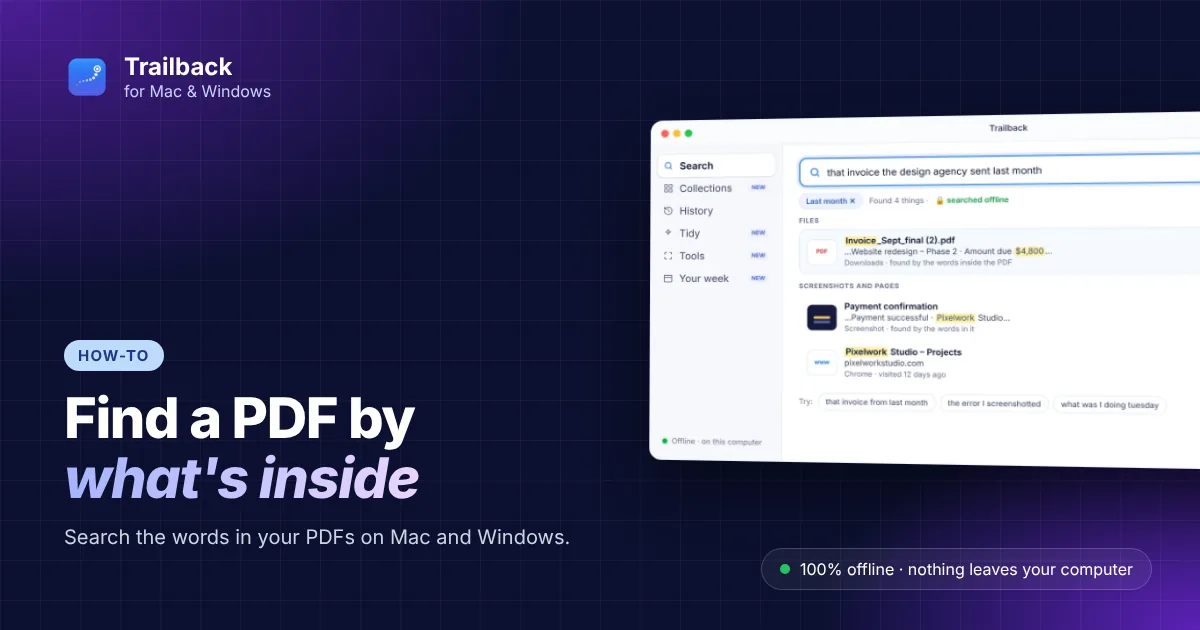
How to Find a PDF by Its Content on Mac and Windows
Dozens of PDFs called document.pdf? How to find the right one by the words inside it, on Mac and Windows.