How to Find a File You Downloaded Last Week (Mac and Windows)

You downloaded something last week, a PDF, an invoice, an installer, and now you can't find it. Here is how to track it down on Mac and Windows, from the quickest checks to the ones that work even when you don't remember the file name.
1. Sort your Downloads folder by date added
Mac: open Finder and press Option + Command + L to open Downloads. Switch to list view (Command + 2) and sort by Date Added (right-click the column headers to show it). "Date Added" is when the file arrived, which is what you want; "Date Modified" can be much older.
Windows: open File Explorer, go to Downloads, choose View → Details and sort by Date modified. Windows also groups Downloads into "Last week" and "Earlier this month" for you.
2. Check your browser's download list
Every browser keeps a list of downloads with the site each came from:
- Chrome, Edge, Brave on Windows: Ctrl + J
- Chrome on Mac: Option + Command + L
- Safari: View → Show Downloads
- Firefox: Ctrl + Shift + Y (Windows) or Command + Shift + Y (Mac)
Click Show in folder (or the magnifying glass) to jump to the file. The catch: this list is wiped when you clear your browsing history.
3. Search for words inside it
If it was a document, search for words you remember from it. On Mac, Spotlight (Command + Space) searches inside PDFs and documents. On Windows, the search box in File Explorer can search file contents once indexing covers the folder. More tips: how to find a PDF by its content.
4. See where a file came from
Both systems note the website a file was downloaded from. On Mac, select the file and press Command + I: "Where from" shows the address. Useful for checking a file you found, less so for finding one.
5. When you don't remember the name or the site
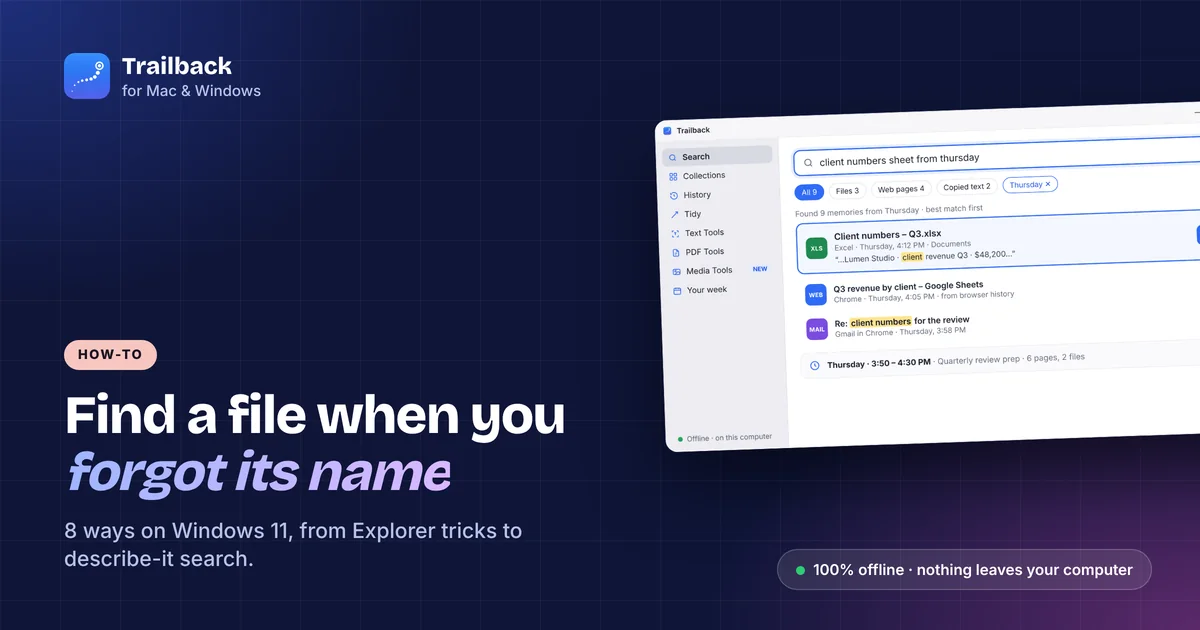
Trailback remembers every file that lands in your Downloads, Desktop and Documents folders, along with the site it came from and the words inside it. Describe it, "the bank statement PDF I downloaded last week", and it finds it, even after you clear your browser history. It works on Mac and Windows, fully offline: nothing leaves your computer.
Related: find a file on Mac when you forgot the name and find a file on Windows 11 when you forgot the name.
Find anything on your computer by describing it.
Files, PDFs, the words in your screenshots and the pages you visited. 100% offline. Your data never leaves your computer.
Trailback - a searchable memory of your computer activity
Frequently asked questions
Where do downloads go on Mac?
To the Downloads folder in your home folder, unless you changed it in your browser’s settings. Press Option + Command + L in Finder to open it.
Can I find a download after clearing my browser history?
The file stays in Downloads, but the browser’s download list is cleared. Trailback keeps its own record of each download and the site it came from, on your computer.
Does Trailback upload my files?
No. Trailback works fully offline; nothing leaves your computer.
Pavan is the founder of Trailback, a private, offline app for Mac and Windows that helps you find anything on your computer by describing it. He builds it at Hara Infotech in Hyderabad.
Keep reading
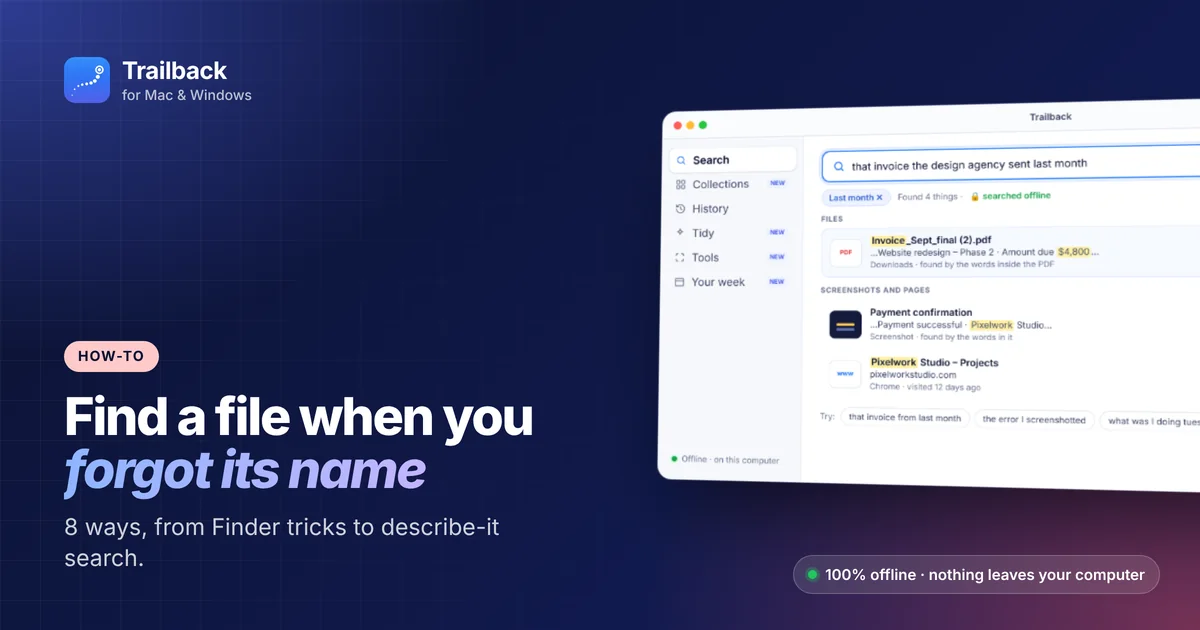
How to Find a File on Mac When You Can't Remember the Name
Eight ways to find a lost file on your Mac, from built-in tricks to searching by what you remember.
How to Find a File on Windows 11 When You Forgot the Name
Eight ways to find a lost file on Windows 10 or 11, from built-in tricks to searching by what you remember.
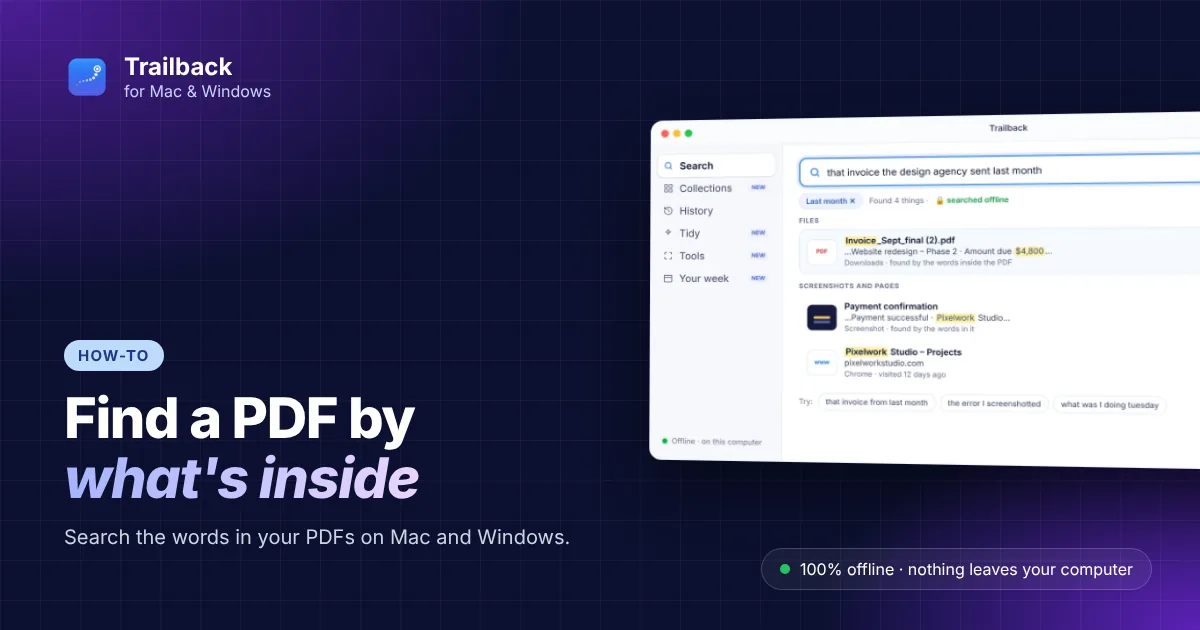
How to Find a PDF by Its Content on Mac and Windows
Dozens of PDFs called document.pdf? How to find the right one by the words inside it, on Mac and Windows.