Microsoft Recall Alternatives That Work on Any Windows PC (2026)
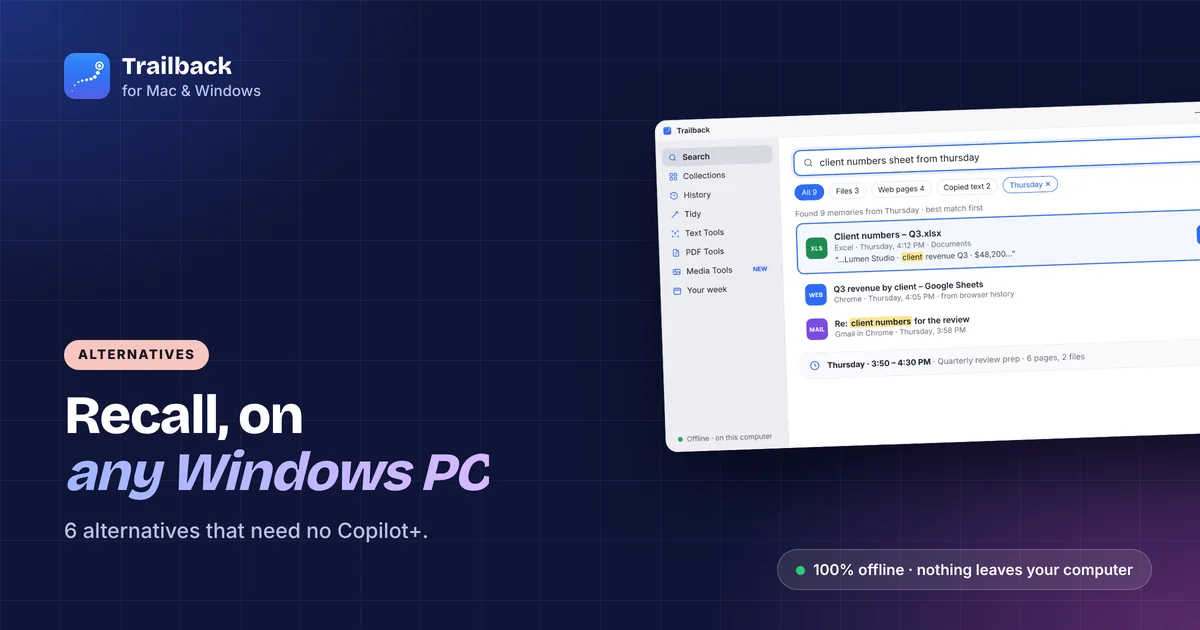
Microsoft Recall is a good idea with two problems. It only runs on Copilot+ PCs, which rules out almost every laptop bought before mid-2024. And it works by taking a screenshot of your screen every few seconds, which is more than many people are comfortable with.
If you want the useful part, finding something you saw last week without remembering what it was called, there are apps that do it on any Windows 10 or 11 PC, and some of them never record your screen at all.
What Recall does, in plain terms
Recall captures snapshots of your screen in the background, runs text recognition on them, and lets you scroll back through a timeline or search the text. The snapshots are stored encrypted on your PC. You need a Copilot+ PC with a 40+ TOPS NPU, Windows Hello, and you have to opt in.
If your PC doesn't qualify, the Recall setting simply isn't there. That's where these alternatives come in.
6 Recall alternatives compared
| App | Needs special hardware? | How it remembers | Screen recording? | Price |
|---|---|---|---|---|
| Trailback | No | Pages, files, screenshots, copied text, by content | No | $19 one-time |
| screenpipe | No (uses CPU/GPU) | Records screen and audio | Yes | Free, paid extras |
| Windows Timeline / Activity history | No | Recent files and apps (limited) | No | Free |
| Everything | No | File names | No | Free |
| Clipboard history (Win + V) | No | Things you copied | No | Free |
| Browser history | No | Pages, until you clear it | No | Free |
1. Trailback: a memory for any PC, fully offline
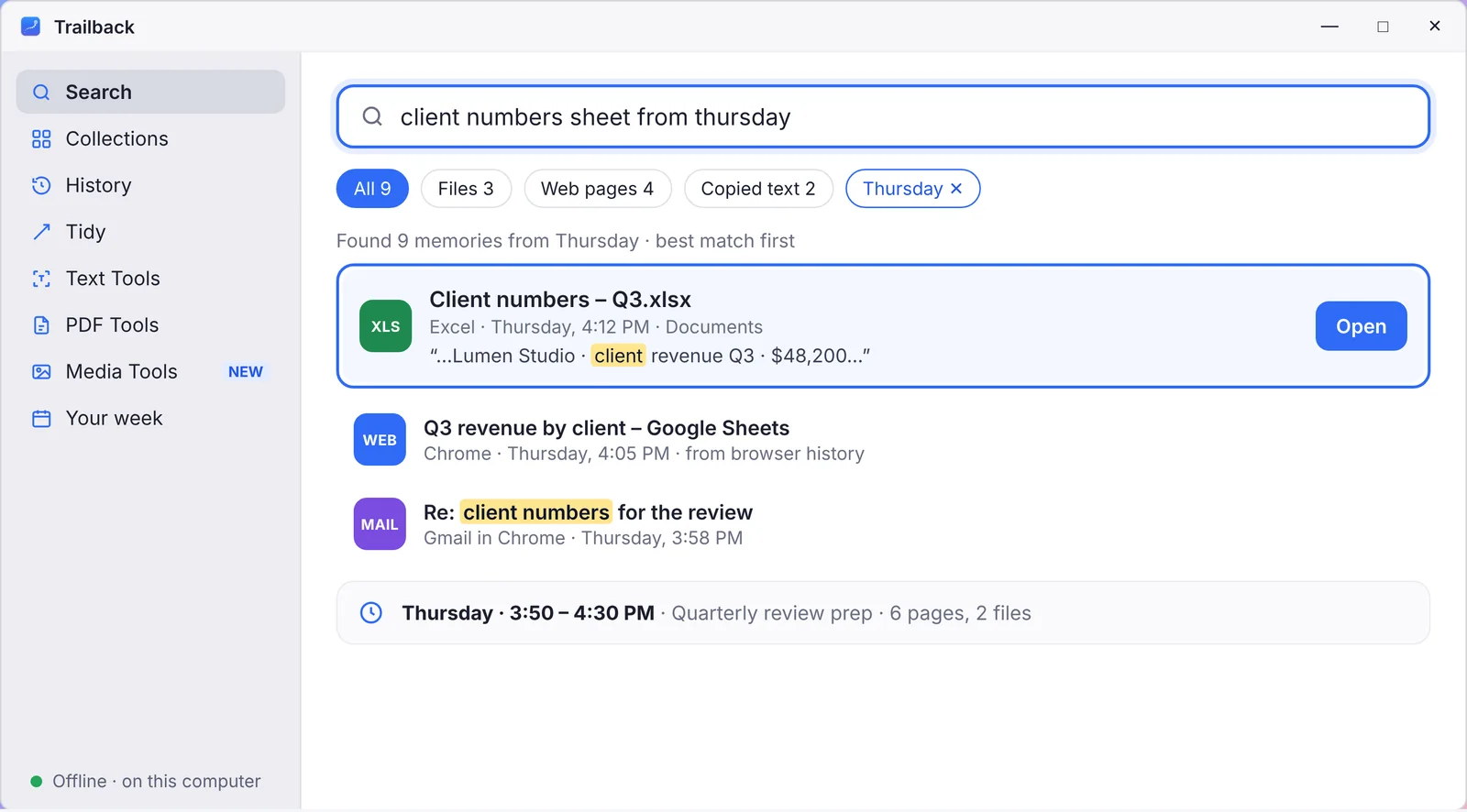
Trailback remembers the web pages you visit (free extension for Chrome, Edge, Brave and Firefox), the files and PDFs you open, the screenshots you take and the text you copy. Instead of scrolling snapshots, you describe what you want:
- "the invoice pdf from last month"
- "screenshot with the error message"
- "the page about visa fees I read on Monday"
It reads the text inside PDFs and screenshots, so a screenshot of a receipt is found by the shop's name or the amount. You can also pick a time, see everything you had open then, and reopen it all in one click.
Privacy: nothing is uploaded. There's no account. Everything is stored encrypted on your PC, you choose how long it's kept, and passwords and card numbers are skipped. It doesn't take screenshots of your screen, so there's no snapshot archive to worry about.
Hardware: any Windows 10 or 11 PC. It's in the Microsoft Store, and it also runs on Mac with the same license. $19 one-time, 7-day money-back guarantee.
2. screenpipe: open-source screen recording
If you specifically want what Recall does, screenshots of everything, screenpipe is the open-source version. It records the screen and audio continuously, runs OCR, and stores it locally. It works on any PC, but it uses disk space and CPU, and you should expect to spend some time setting it up.
3. Windows Activity history (what's left of Timeline)
Windows used to have Timeline, a scrollable history of what you opened. Microsoft removed most of it, but Settings → Privacy & security → Activity history still tracks recent apps and files on this device. It's shallow and it doesn't search inside anything, but it's free and already there.
4. Everything: instant file-name search
Everything is a tiny free app that finds any file on your PC by name, instantly. It doesn't look inside files and it has no memory of web pages or screenshots, but if you remember part of the file name, nothing is faster.
5. Clipboard history: Win + V
Press Win + V once, turn it on, and Windows keeps the last 25 things you copied. It clears on restart unless you pin items, and it's text and images only. For "what did I copy an hour ago", it's enough. See our guide to clipboard history on Mac and Windows for more.
6. Browser history, done properly
Your browser already remembers every page you visited. Press Ctrl + H and use the search box. The catch: it only searches page titles, not the text on the page, and it's gone the moment you clear it. If you've already cleared it, here's how to find a website you visited last week.
Which one should you use?
- You want Recall's "find it later" without snapshots, on your current PC: Trailback.
- You want the full screen-recording approach and like open source: screenpipe.
- You only need file names or the clipboard: Everything and Win + V, both free.
Find anything on your computer by describing it.
Files, PDFs, the words in your screenshots and the pages you visited. 100% offline. Your data never leaves your computer.
Frequently asked questions
Can I get Microsoft Recall on a PC that isn't Copilot+?
No. Recall needs a Copilot+ PC with a qualifying NPU, and the setting doesn't appear on other machines. Apps like Trailback and screenpipe give you a similar "find what I saw" ability on any Windows 10 or 11 PC.
Is there a Recall alternative that doesn't take screenshots?
Yes. Trailback remembers pages, files, screenshots you take yourself and copied text, and reads the text inside them. It never captures your screen in the background.
Is Recall safe to use?
Recall stores snapshots encrypted on your PC and requires Windows Hello to view them. Even so, snapshots can include anything on screen, which is why many people prefer tools that don't record the screen at all.
Does Trailback work on Windows 10?
Yes. Trailback runs on Windows 10 and Windows 11, installed from the Microsoft Store.
Pavan is the founder of Trailback, a private, offline app for Mac and Windows that helps you find anything on your computer by describing it. He builds it at Hara Infotech in Hyderabad.
Keep reading
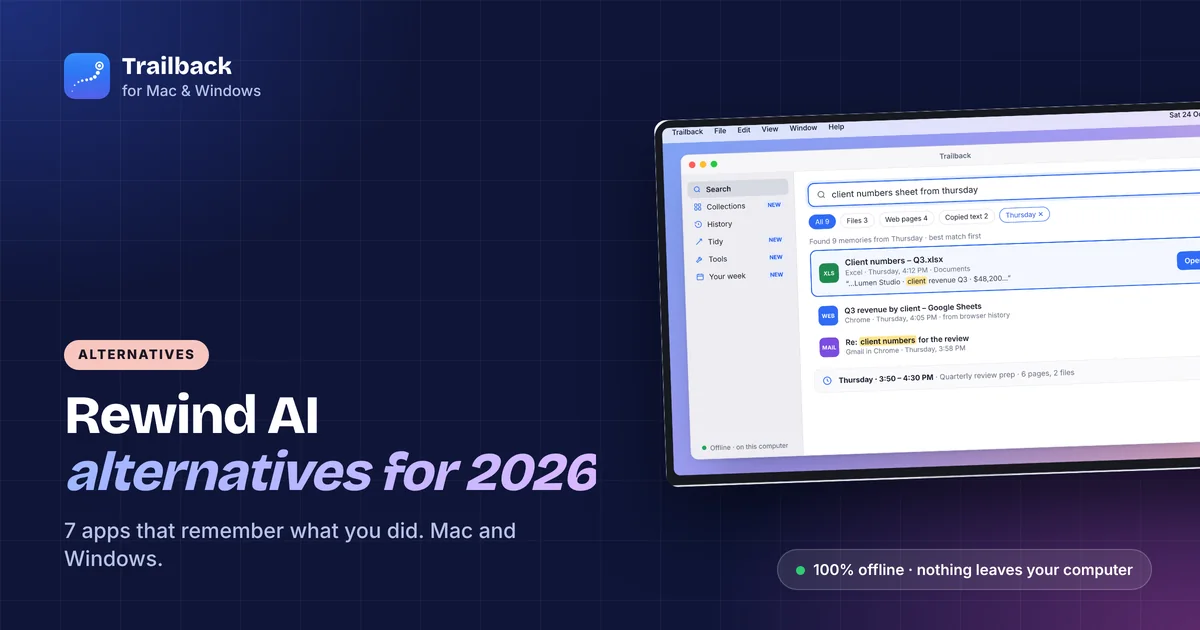
Rewind AI Alternatives in 2026: 7 Apps That Remember What You Did (Mac and Windows)
Rewind is gone. These seven apps remember what you did on your computer, from fully offline tools to open-source recorders.
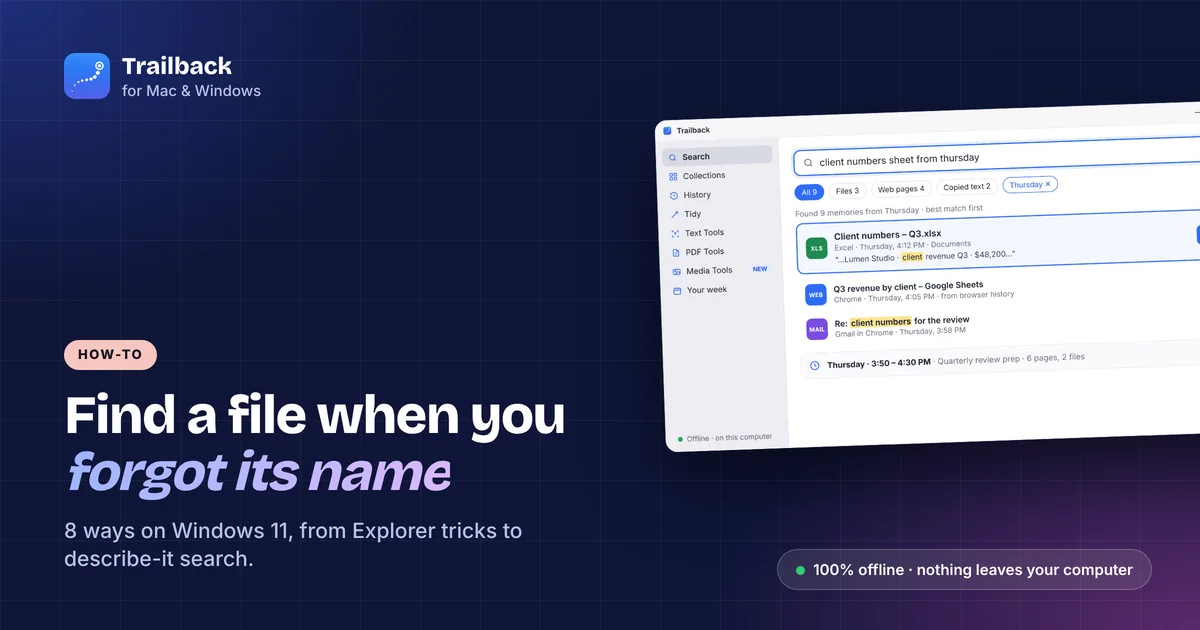
How to Find a File on Windows 11 When You Forgot the Name
Eight ways to find a lost file on Windows 10 or 11, from built-in tricks to searching by what you remember.
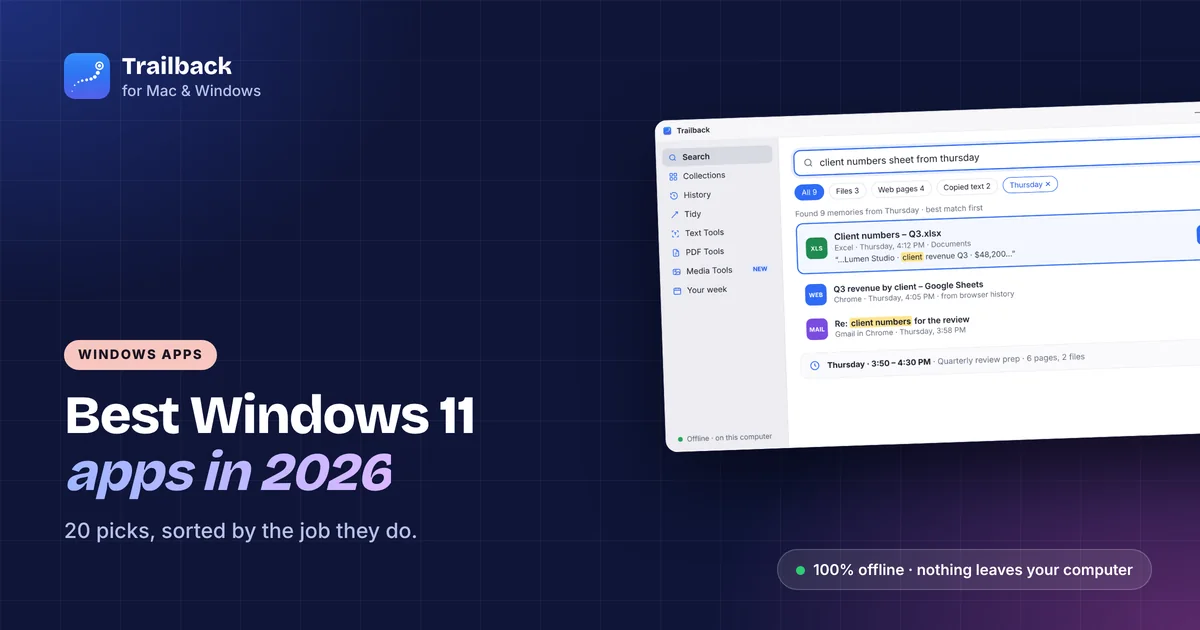
The Best Windows 11 Apps in 2026: 20 Picks Worth Installing
Twenty Windows apps that earn their place, sorted by the job they do, with free picks in every group.