Best Paid Mac Apps for a New Mac
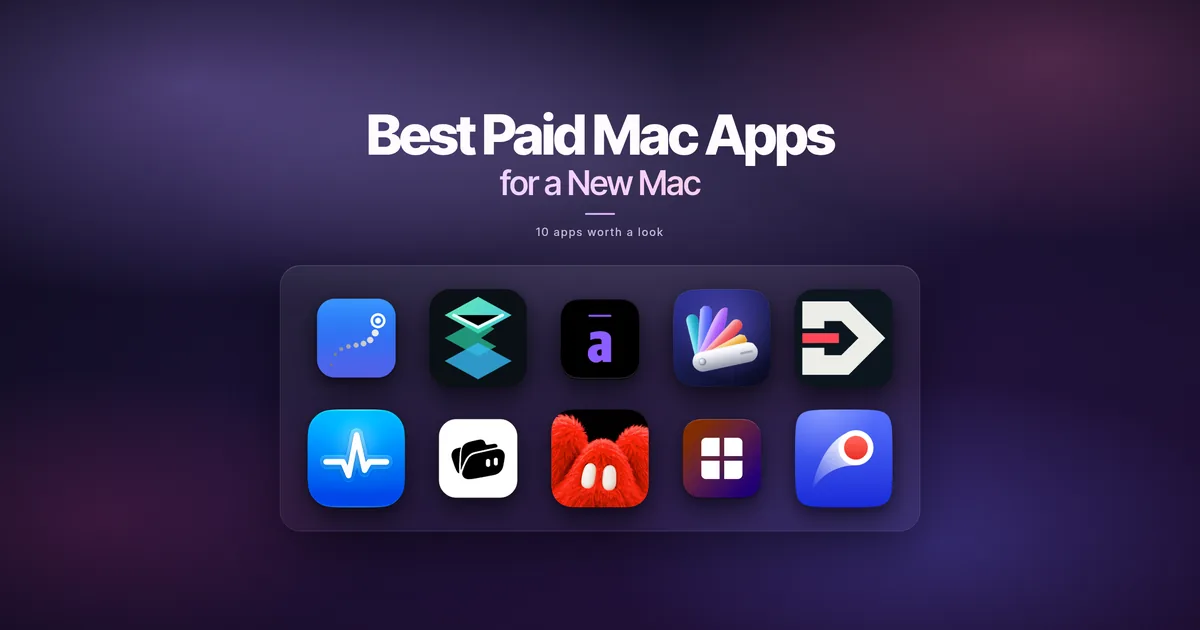
Search for the best Mac apps and you will mostly find free lists, or long roundups that mix every kind of tool together. This page is a shorter list of the best paid Mac apps for a new Mac, and it works as a guide for a new MacBook too.
These are ten Mac apps worth paying for, from simple Mac utilities to Mac productivity apps. Each one has a plain reason for being here, plus a link to the maker's site so you can judge it yourself.
If you would rather start with free tools, see our list of the best free Mac apps. For a wider mix of free and paid picks, there is also our guide to the best Mac apps.
How we chose these paid Mac apps
We kept the list short. Every app here does one job clearly, works on a current Mac, and is made by someone who puts their name on it. This is not a ranking, and we do not tell you which ones to buy. That is your choice.
The ten apps are below, in this order, with a link for each one.
1. Trailback: find files, pages and screenshots by describing them
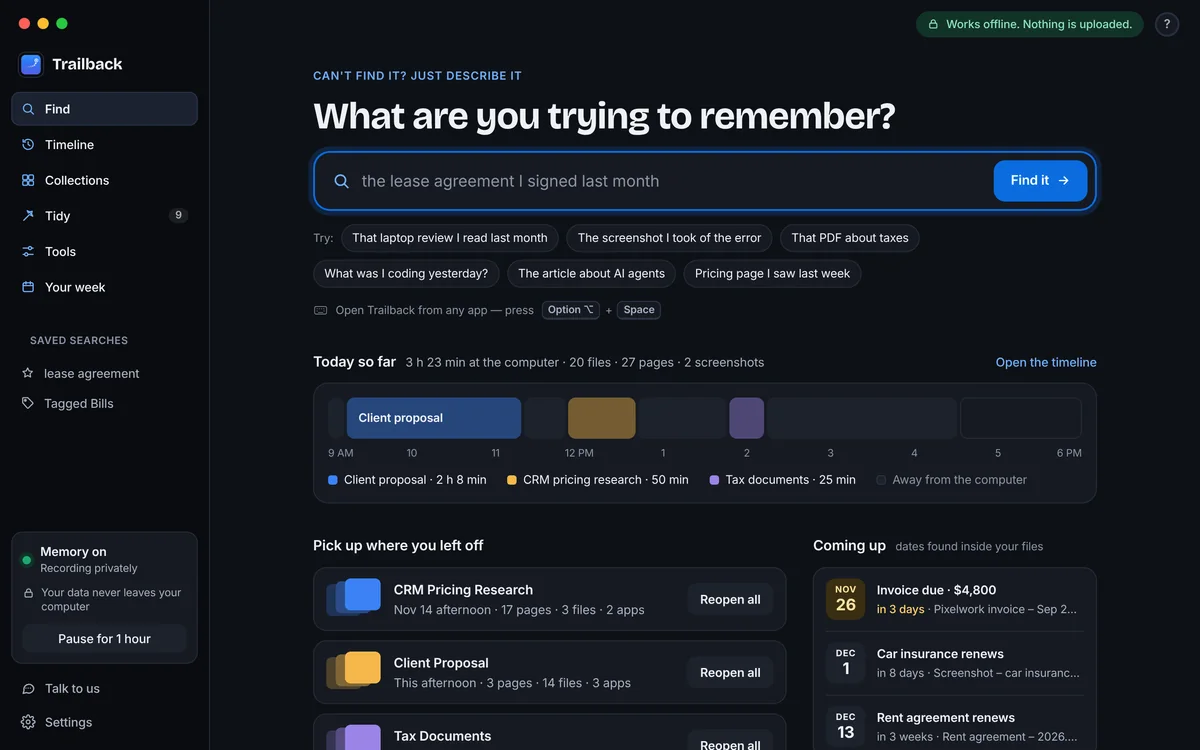
Trailback is a private memory for your computer, on Mac and Windows. It quietly remembers the apps and pages you used, the files and downloads you opened, the screenshots you took and the text you copied. Later you type something like "the lease agreement I signed last month", and it finds it.
Spotlight is great when you remember the file name. Trailback helps when you do not. It also searches the words inside PDFs and screenshots. Everything runs offline. Your data never leaves your computer, and it is not a screen recorder.
If that kind of search is what you want, you can try Trailback on trailback.app. It is the same app on Mac and on Windows, and each license is for one computer.
Works on Mac (macOS 13 or later) and Windows 10 and 11.
Check it out: trailback.app
Made by @ItsPavanGK on X
If Spotlight keeps missing things, you may also like our guide to Spotlight alternatives for Mac, and how to search the text inside screenshots.
2. SpaceWise: a Mac utility that clears hidden storage
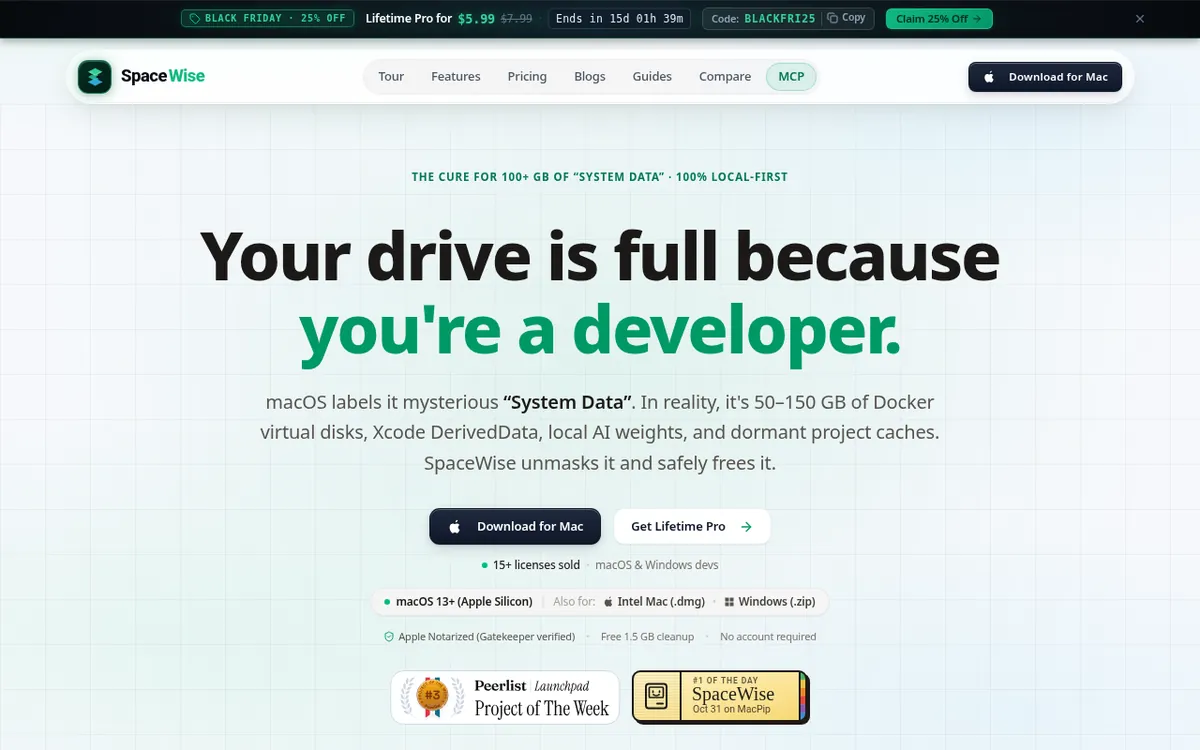
SpaceWise is a storage cleaner that finds hidden files eating your drive, such as node_modules folders, Docker data, Xcode files and local AI tool files, and shows you what is safe to delete.
macOS often just calls this "System Data". The site says SpaceWise checks lockfiles and git activity before it suggests deleting anything, and files go to the Trash so you can undo.
Works on macOS 13 or later, Apple silicon, with an Intel build and a Windows version too.
Check it out: spacewisemac.in
Made by @_ojas_13 on X
3. ActionClip: a Mac productivity app for selected text
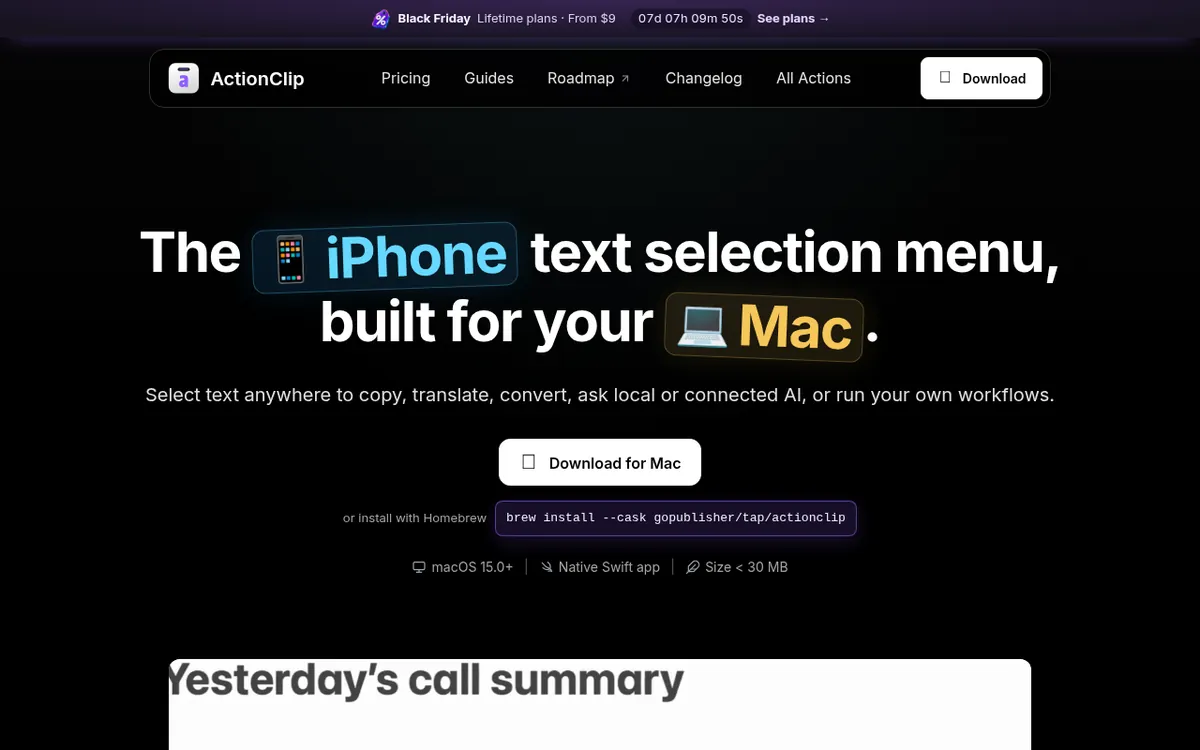
ActionClip adds a small floating menu whenever you select text on your Mac, like the one on an iPhone. From there you can copy, translate, rewrite, summarise, count words, or run your own actions.
If you copy, paste and translate all day, this cuts a lot of small steps. The site lists 45 built-in actions. For AI actions you can use Apple Intelligence on your Mac, or connect your own API key.
Works on macOS 15 or later.
Check it out: actionclip.app
Made by @AdvaitVaidya2 on X
4. MightyBench: everyday Mac utilities in one app
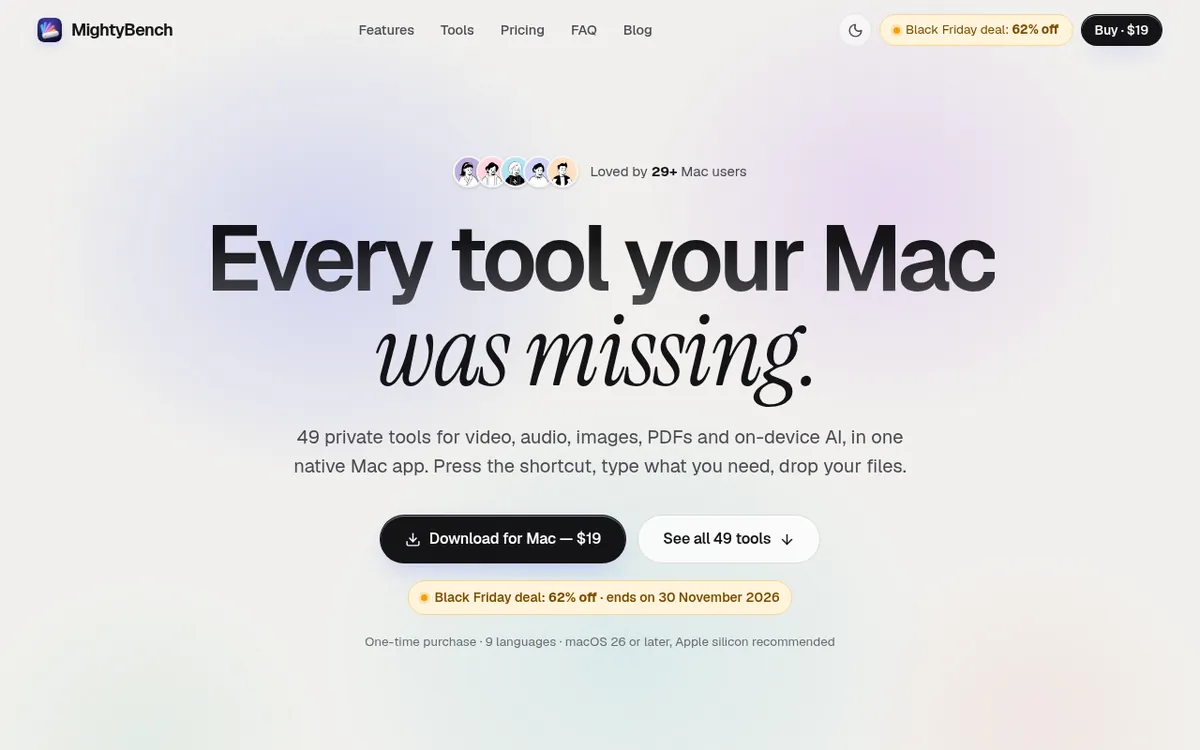
MightyBench puts 49 tools in one app: compress video, merge PDFs, remove an image background, transcribe audio, record your screen, batch rename files and more. You press a shortcut, type what you need and drop your files in.
On a new Mac, that means you do not need a different app, or a random website, for each of these small jobs. The site says everything runs on your Mac and nothing is uploaded.
Works on macOS 26 or later, Apple silicon recommended.
Check it out: mightybench.com
Made by @hisidhant on X
5. DiskEzy: see which folders are filling your Mac
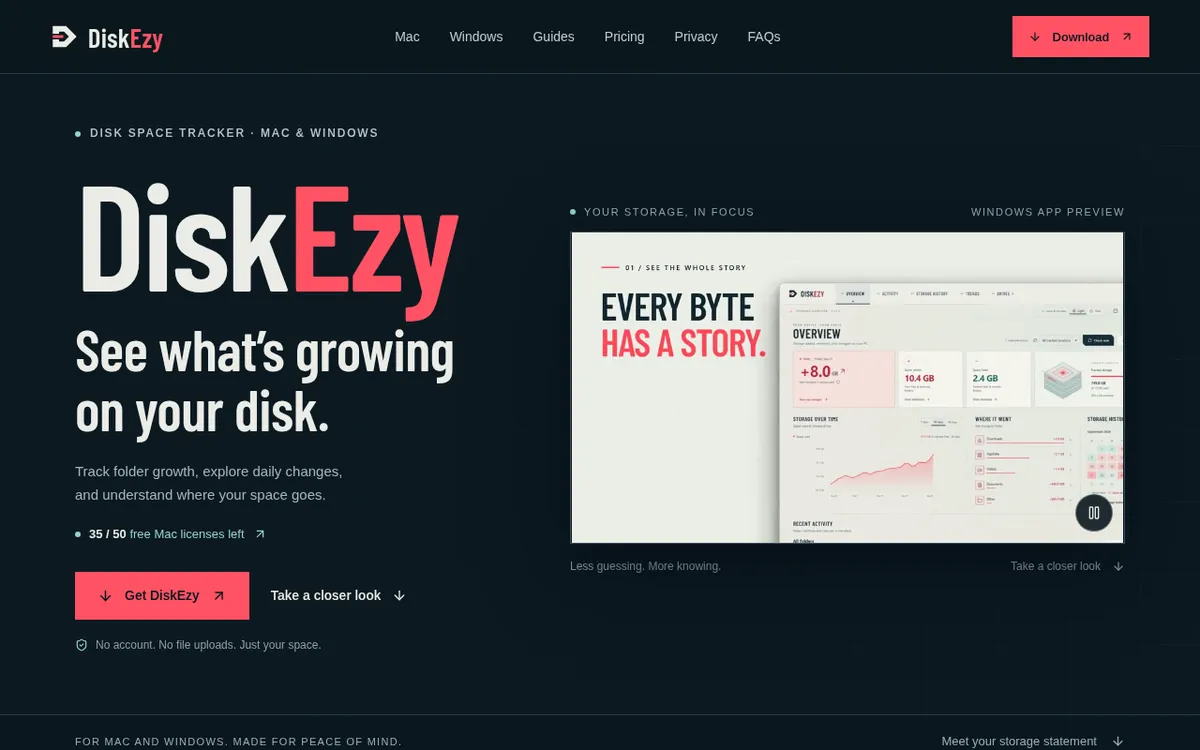
DiskEzy tracks how your folders grow over time. A normal disk scan shows you one moment. DiskEzy shows what was added, what was removed, and the net change each day, with up to 90 days of history.
A new Mac starts with a mostly empty disk, and then downloads and updates quietly fill it up. This tells you which folder did it. The site says there is no account and no file uploads.
Works on Mac and Windows.
Check it out: diskezy.com
Made by @kingloves2code on X
For more on cleaning a messy Downloads folder, see best Mac apps to organise files.
6. Vitals: a clearer look at what is running on your Mac
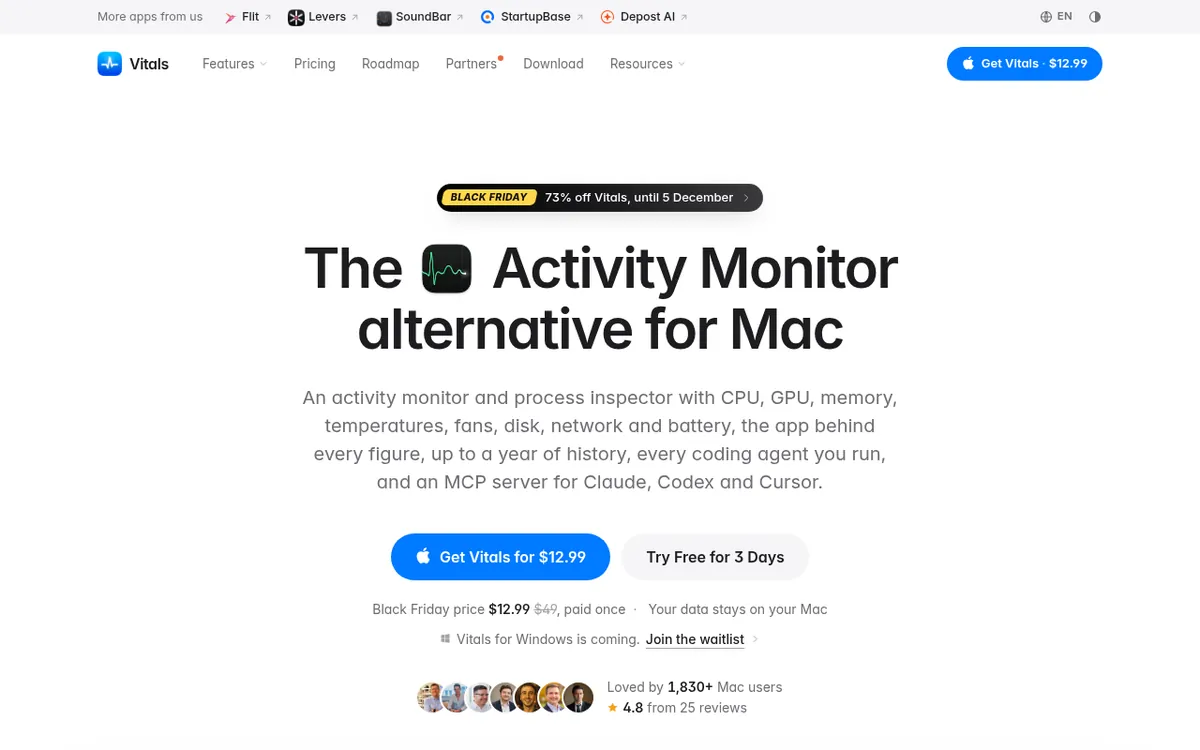
Vitals is an Activity Monitor alternative. It shows what is using your CPU, memory, network, fans and battery, and it keeps up to a year of history. It lives in the menu bar.
If your Mac feels slow or the fan gets loud, the first step is seeing what is actually busy. Vitals makes that easier to read than the built-in app. The site lists seven tools in one.
Works on macOS 15 Sequoia or later, Apple silicon and Intel.
Check it out: vitalsmac.com
Made by @attacomsian on X
7. Helumi: more space on a MacBook without a bigger drive
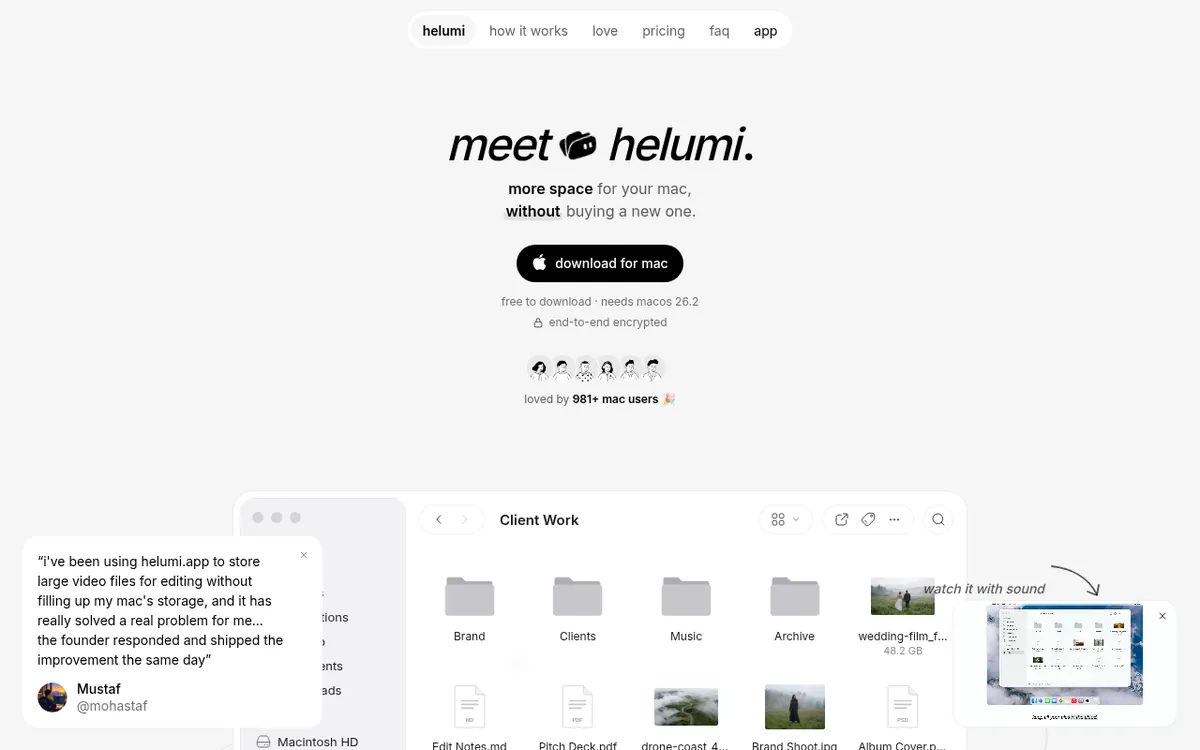
Helumi keeps your files in the cloud, but they show up in Finder and open in a second, in any app. The site says the files take no space on your Mac.
Mac storage is the one thing you cannot upgrade later. If you edit video, shoot photos or work with big files, this can stretch a small SSD. The site says it is end-to-end encrypted.
Works on macOS 26.2 or later.
Check it out: helumi.app
Made by @letcontactabhi on X (the app also has its own account, @helumiapp)
8. Woday: calendar, tasks and notes in one Mac productivity app
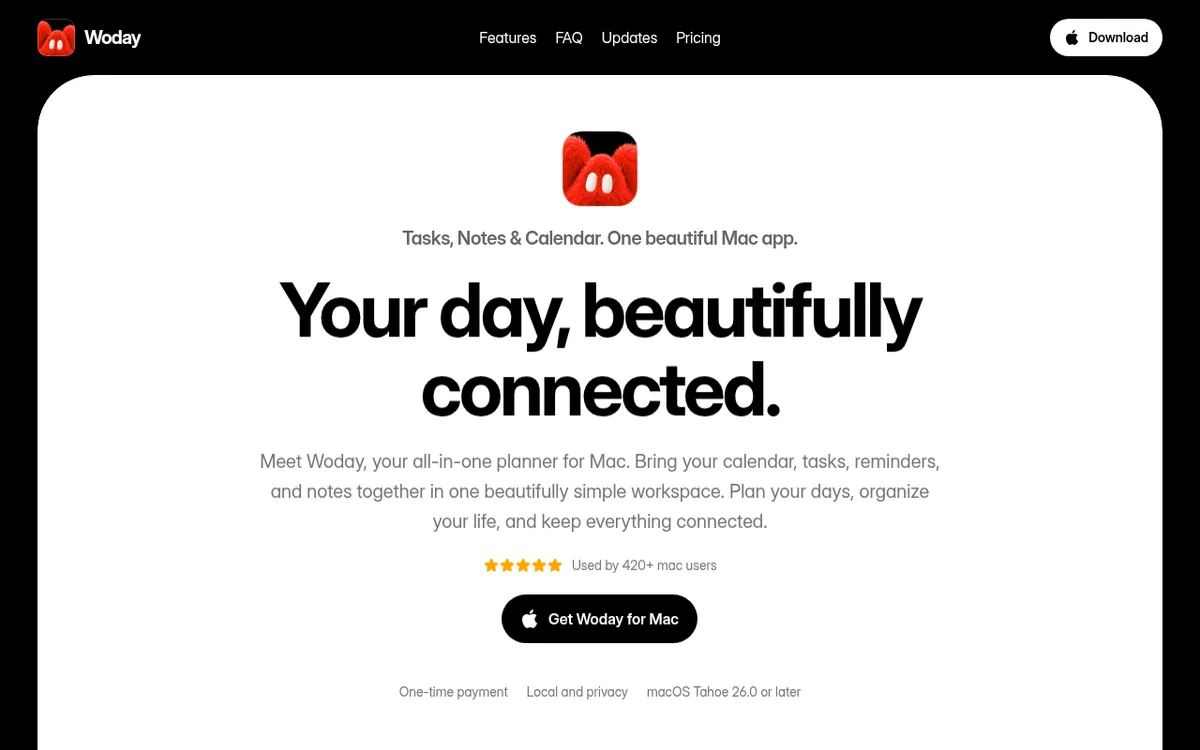
Woday puts your calendar, tasks, reminders and notes in one Mac app. You can link a task to an event, write block-style notes, and use a quick shortcut to add anything. It syncs through your own iCloud, and you can connect your own AI key if you want.
A new Mac usually starts with four different apps for plans and notes. Woday puts them in one place and works with Apple Calendar.
Works on macOS Tahoe 26.0 or later.
Check it out: woday.app
Made by @soltwagner on X
9. ChainYourMac: a scrolling window manager for macOS
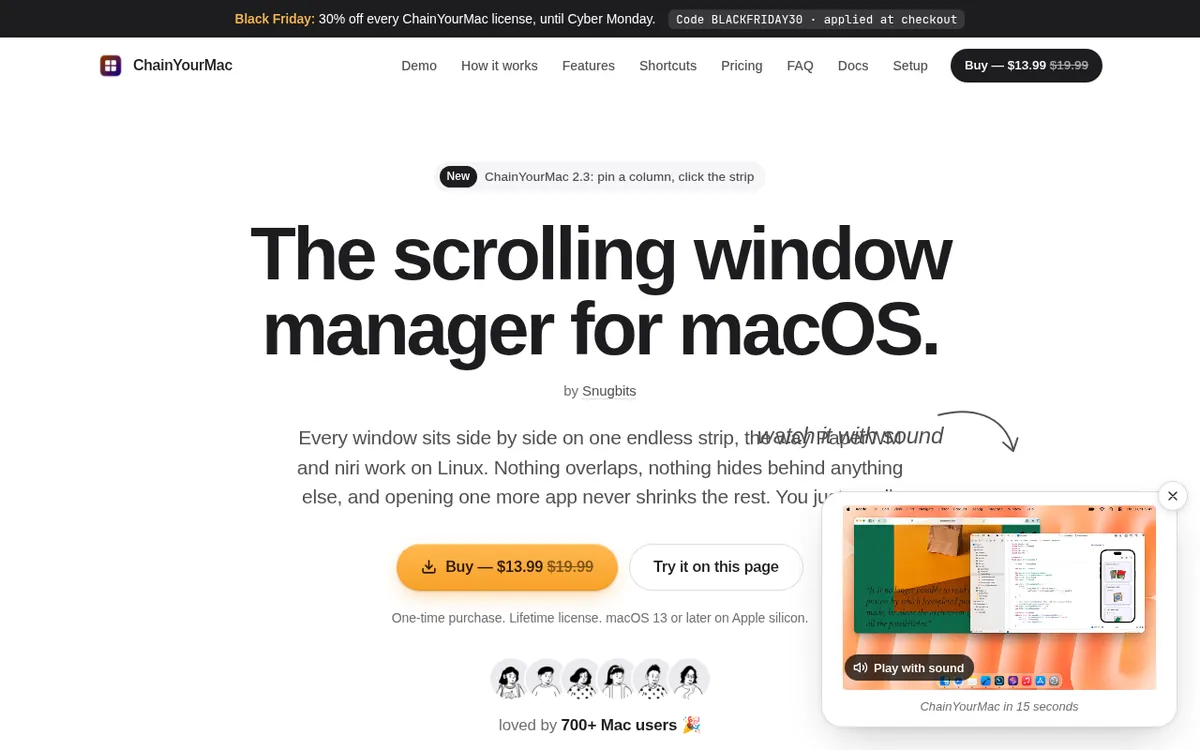
ChainYourMac lays out your windows on one endless horizontal strip, side by side. You move around with keyboard shortcuts. It is inspired by Linux window managers like Niri and PaperWM.
If you keep many windows open, the macOS default of stacking them everywhere gets messy fast. This gives you one clear row. The site says it is a native app, with no Electron, and it needs one permission, Accessibility.
Works on macOS 13 Ventura or later, Apple silicon (M1 or newer) only.
Check it out: chainyourmac.com
Made by @ahmedgagan11 on X
10. Smooth Recorder: a Mac screen recorder that edits for you
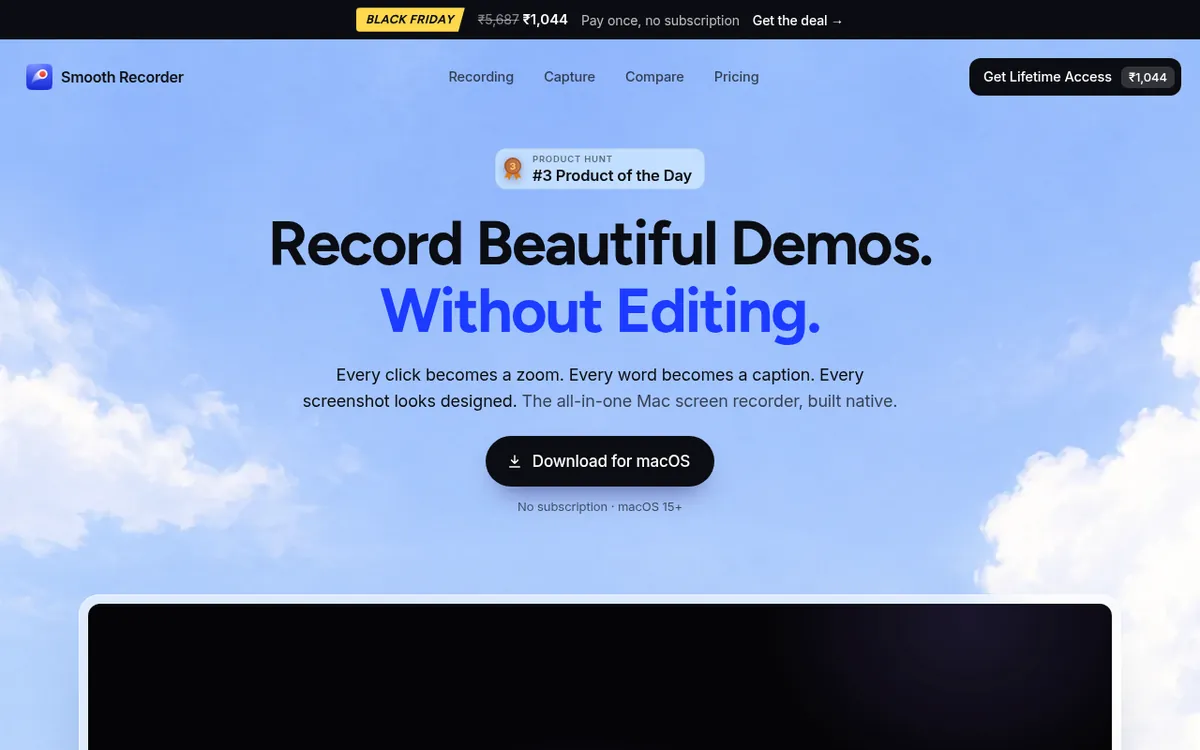
Smooth Recorder is a Mac screen recorder that does the editing for you. When you stop recording, the zooms on your clicks, a smooth cursor and captions are already done. It also takes screenshots and GIFs.
Your Mac can already record its screen with Shift, Command and 5. Smooth Recorder is for videos you want to look finished, like demos and tutorials, without learning a video editor. The site says captions and text recognition run on your Mac.
Works on macOS 15 Sequoia or later.
Check it out: smoothrecorder.com
Made by @mdanassaif on X
A short list, not a shopping order
These ten are paid Mac apps we wanted in one place. The links are above, so you can look at the ones that fit your work. If one of them helps, tell the maker. Small Mac apps are usually built by one person.
If you want a wider set of picks, including free ones, read the best Mac apps and the best free Mac apps. There is also a separate page on Mac apps you must download if you are setting up a new machine.
Find anything on your computer by describing it.
Files, PDFs, the words in your screenshots and the pages you visited. 100% offline. Your data never leaves your computer.
Trailback - a searchable memory of your computer activity
Frequently asked questions
What are the best paid Mac apps?
There is no single list that fits everyone. It depends on the work you do. This page is ten paid Mac apps we think are worth a look on a new Mac, from search and storage to writing, windows and screen recording. Open the ones that match your day, and skip the rest.
What Mac apps are worth paying for?
A paid app is worth it when it does a job you actually have, and does it better than the built-in tool or a free option. The apps on this page are ones we included for that reason, not because they were free or because someone paid for a mention.
What are the best apps for a new MacBook?
A new MacBook is already useful with Apple's own apps. Extra apps help when you want to find things faster, keep the disk under control, write and plan in one place, or record a finished-looking video. This list of best paid Mac apps is one place to start. For a mix that includes free tools, see our best Mac apps guide.
What are must have Mac apps for productivity?
Must have depends on how you work. For finding files and pages, Trailback belongs in that conversation. For selected text, look at ActionClip. For a lot of small file jobs in one app, MightyBench. For calendar, tasks and notes together, Woday. You do not need all of them.
What are the best Mac utilities?
Mac utilities are the small tools that sit in the background and save you fuss, such as a storage cleaner, a disk tracker, a system monitor or a window manager. On this list, that includes SpaceWise, DiskEzy, Vitals, MightyBench and ChainYourMac.
Are paid apps for Mac worth it compared to free ones?
Often a free app is enough, and macOS already covers a lot. Paid apps make more sense when you want a calmer design, a one-time license, or a feature the free tools do not have. We also keep a separate list of the best free Mac apps if you want to compare.
Pavan is the founder of Trailback, a private, offline app for Mac and Windows that helps you find anything on your computer by describing it. He builds it at Hara Infotech in Hyderabad.
Keep reading
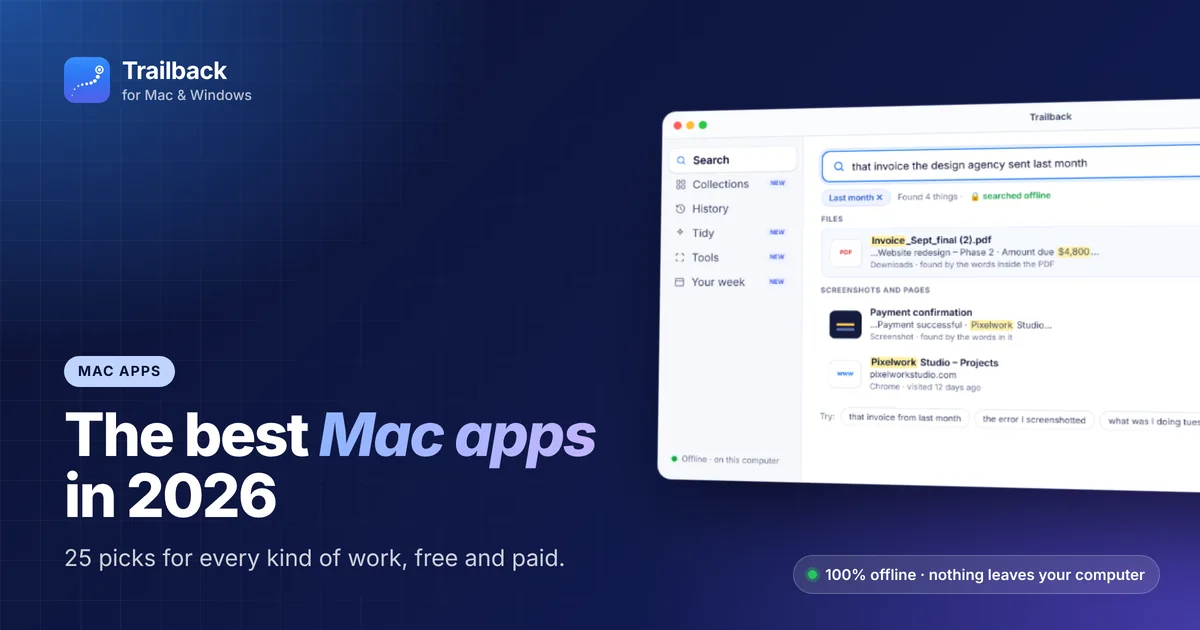
The Best Mac Apps in 2026: 25 Picks for Every Kind of Work
Twenty-five macOS apps that earn their place on your Mac, sorted by the job they do, with free options in every group.
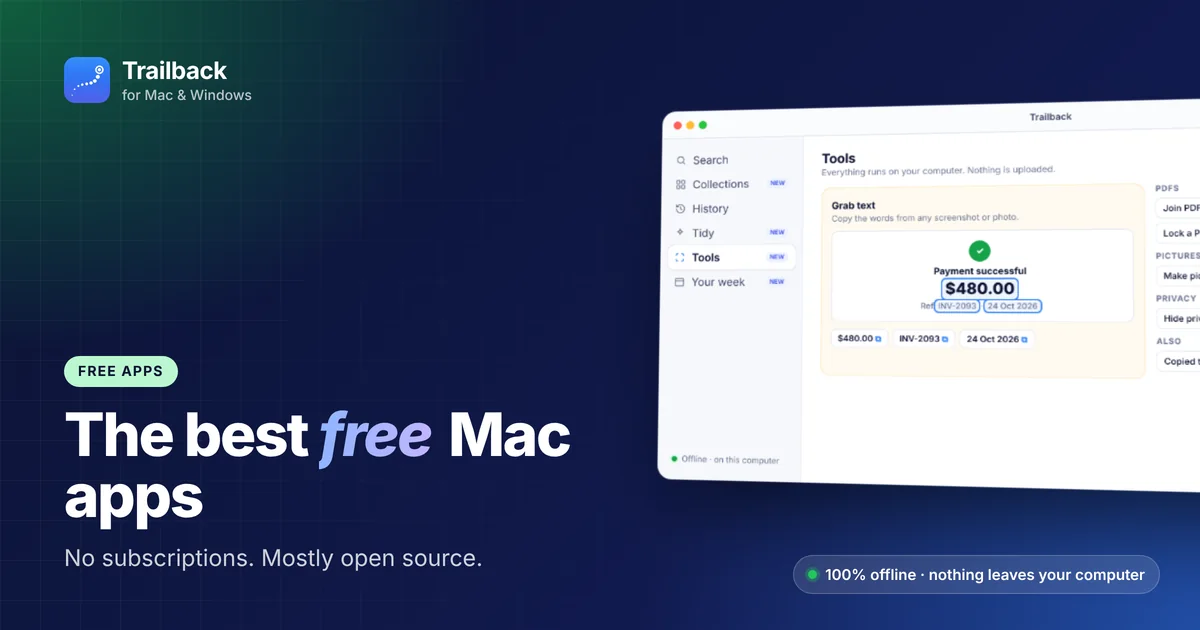
The Best Free Mac Apps in 2026 (No Subscriptions, No Catch)
Fifteen genuinely free Mac apps, most of them open source, that are as good as or better than paid alternatives.
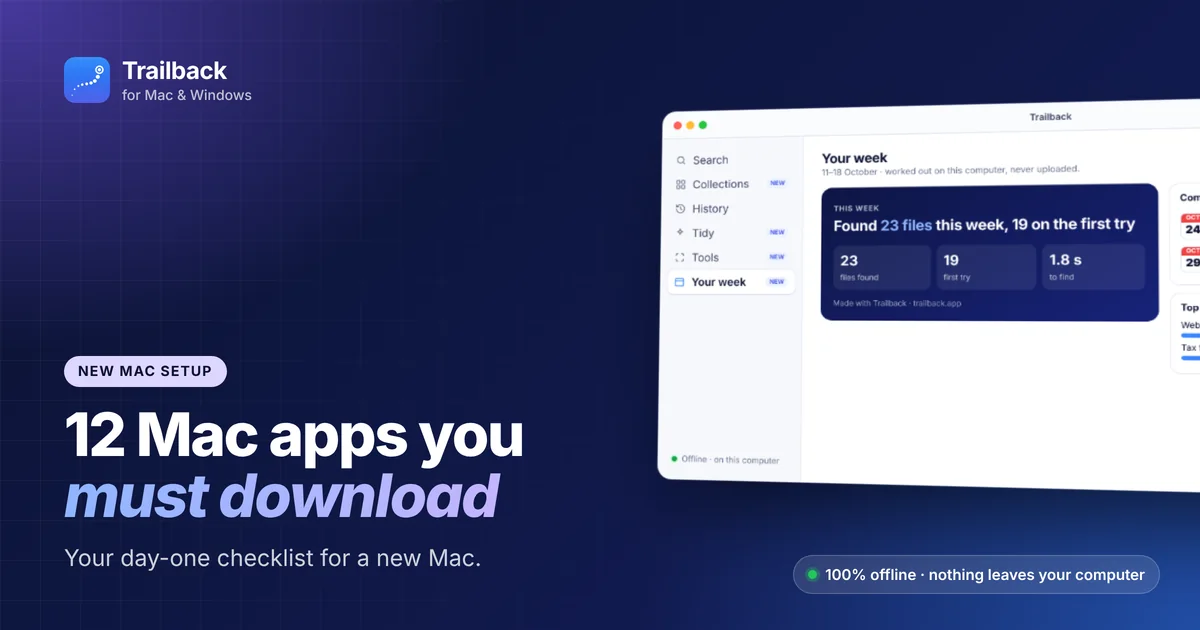
12 Mac Apps You Must Download on a New Mac
A day-one checklist for a new MacBook or iMac: the 12 apps to install first, and the settings to change before you start.