How to Find a Photo by Describing What's in It (Mac and Windows)

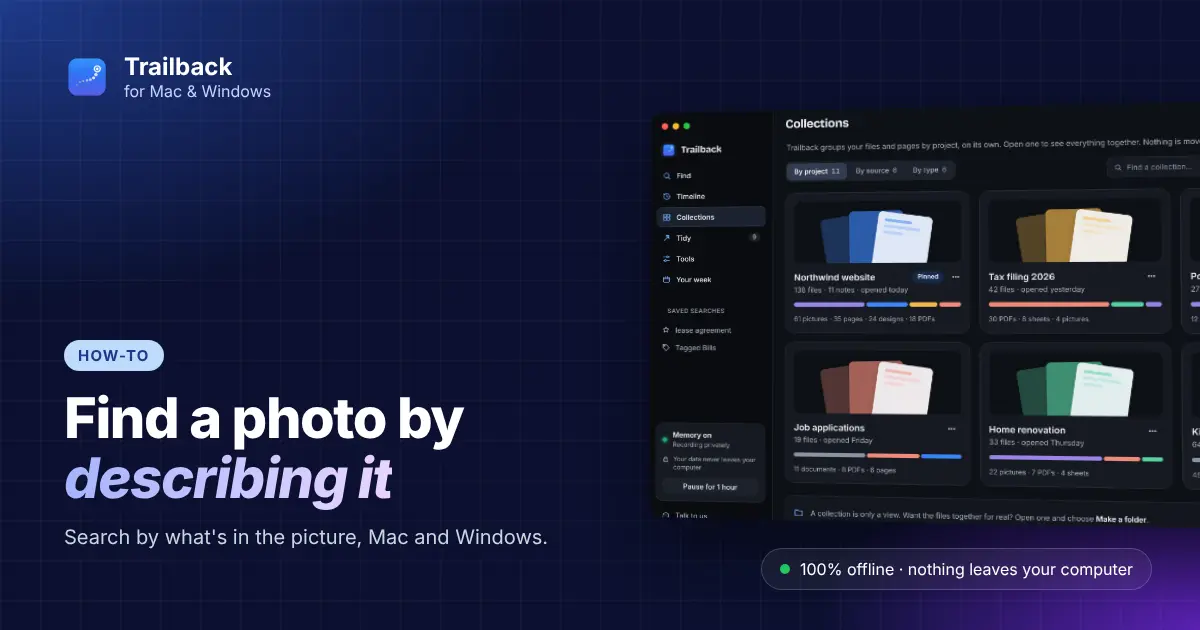
Cameras and phones name pictures with numbers. IMG_4471.jpg could be a birthday cake or a photo of a whiteboard. So when you need one picture out of thousands, the file name is no help. What you remember is what was in it: "the dog on the sofa", "the whiteboard from the planning meeting", "the pizza from last month".
Here are the ways to search by what is in a photo, on a Mac and on Windows, starting with what you already have.
On a Mac: the Photos app
If your pictures are in the Photos app, start there. Click the search box and type what is in the picture: "dog", "beach", "birthday cake". Photos recognises many things and scenes, and it does this on your Mac. You can add a place or a time, such as "dog 2025".
- Good for: pictures you took with an iPhone or imported into Photos.
- Not for: picture files sitting in Downloads, Desktop or a project folder. Photos only knows the pictures in its own library.
On a Mac: Spotlight and Finder
Spotlight can find a picture by the text in it, and on recent versions of macOS it understands some descriptions too. Press Command + Space and try "photos of receipts". Results vary with the Mac and the macOS version, so treat it as a quick first try. For screenshots in particular, see how to search the text in screenshots on a Mac.
On Windows: the Photos app and File Explorer
What you get depends on your PC and your version of Windows. The Photos app can search by what is in a picture for photos kept in OneDrive, and newer Copilot+ PCs add describe-it search for pictures on the PC itself. The quick test: type "dog" in the Photos search box and see what comes back. File Explorer searches by name, date and folder, which is little help with IMG_4471.jpg.
- Good for: people who already keep their photos in OneDrive, or who have a Copilot+ PC.
- Not for: photos you prefer not to upload, on an ordinary PC.
Online photo services
Services such as Google Photos are very good at this: type almost anything and they find it. The trade is that every photo is uploaded to the company's computers first. If that is fine for you, they work well. If your pictures include documents, clients' work or anything private, read on.
An offline way: Trailback
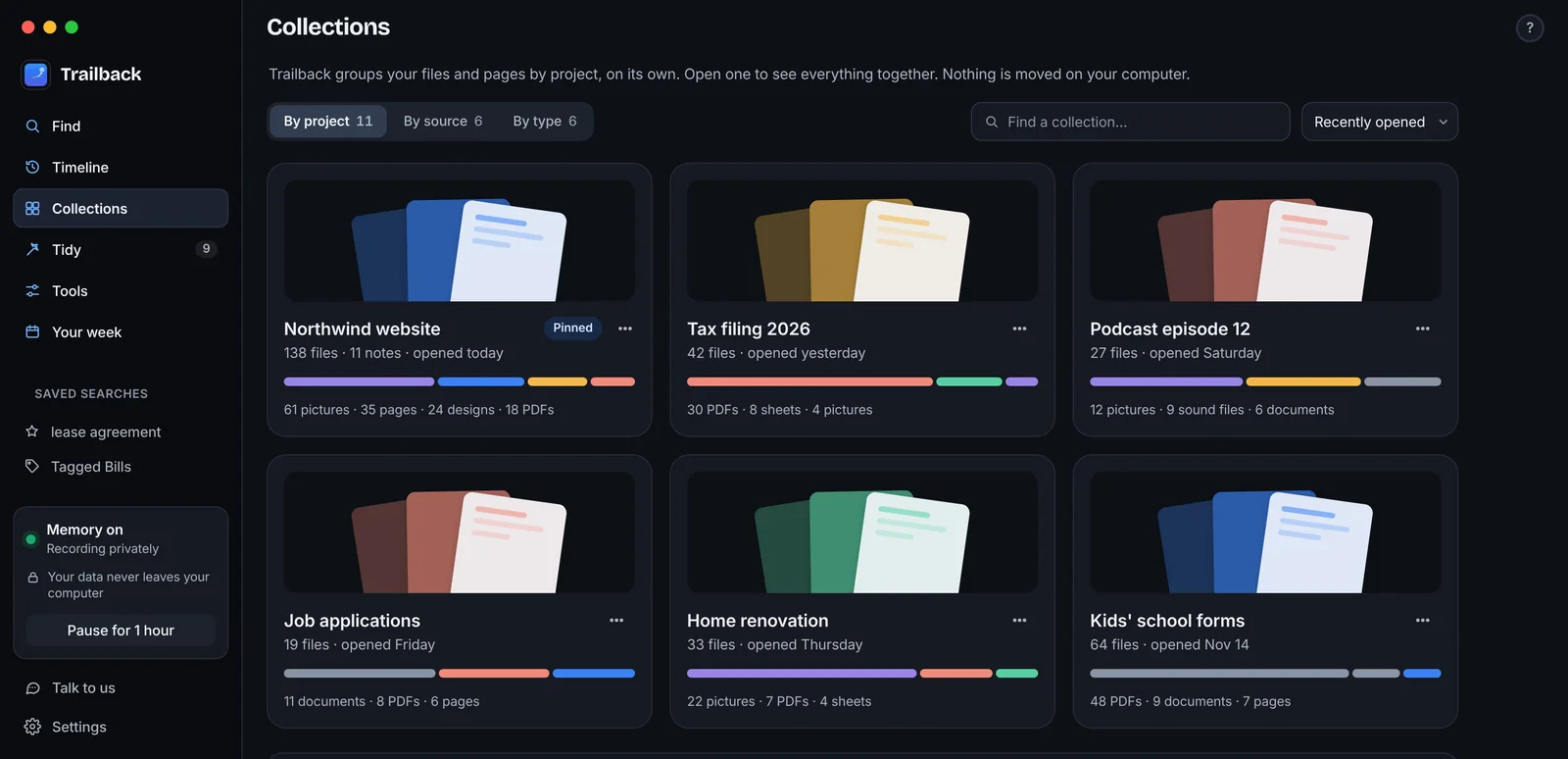
Trailback is our app for Mac and Windows. It remembers the files, pages and screenshots on your computer so you can find them by describing them, and that includes photos. A small picture reader that comes with the app notes what is in each picture in your Pictures, Desktop, Documents and Downloads folders, and any folder you add. Then you search in plain words:
- "photo of my dog last month"
- "pizza"
- "whiteboard from the planning meeting" (the words written on the whiteboard are read too)
Everything is worked out on your computer. No photo is uploaded, and it works with Wi-Fi off. On a Mac you can also include the Photos app library; that is off until you turn it on, and your Mac asks you first.
What it cannot do
It is worth being plain about the limits.
- It does not recognise people. You cannot search for a person by name. Photos on a Mac does that better.
- It knows common things, not everything. The picture reader knows about a thousand kinds of things: animals, food, furniture, vehicles, places like a beach or a kitchen. "Dog" works. "My neighbour's dog" does not.
- It does not edit or sort an album. It finds the picture and shows you where it is.
Which way should you use?
| If... | Use |
|---|---|
| Your pictures are in the Mac Photos app | Photos search |
| Your pictures are in OneDrive or Google Photos already | That service's search |
| They are loose files in folders, on Mac or Windows | Trailback |
| You remember the words in the picture | Spotlight on a Mac, or Trailback on either |
| You are looking for a person | Photos on a Mac |
| You do not want anything uploaded | Photos on a Mac, or Trailback on either |
Same picture twice?
While you are at it: most photo folders hold the same picture several times. Trailback's Tidy has a Similar photos card that finds them, so you can keep one and send the others to the Trash, with Undo. More in how to organize files on a Mac.
If you keep client pictures and files for work, Trailback for freelancers shows how it fits a working week, and the compare page sets Trailback beside other search apps. On Windows, also see how to search the text in screenshots on Windows.
Find anything on your computer by describing it.
Files, PDFs, the words in your screenshots and the pages you visited. 100% offline. Your data never leaves your computer.
Trailback - a searchable memory of your computer activity
Frequently asked questions
Can I search my photos by what is in them without uploading them?
Yes. The Photos app on a Mac recognises what is in your photos on the Mac itself. Trailback does the same on Mac and Windows for the picture files in your folders, and nothing is uploaded.
Can I find a photo of a particular person?
The Photos app on a Mac can group photos by person. Trailback does not recognise faces or people. It finds photos by what is in them, such as a dog, a beach or a pizza, by the words in them, and by when they were taken or saved.
How do I find a photo by the text in it?
On a Mac, Photos and Spotlight can search the text in pictures. On Windows, the built-in search does not, so use an app that reads the text in pictures. Trailback reads it on both.
Why can't I find my photo by its file name?
Cameras and phones name files with numbers, such as IMG_4471.jpg. The name says nothing about the picture, which is why searching by what is in it works better.
Pavan is the founder of Trailback, a private, offline app for Mac and Windows that helps you find anything on your computer by describing it. He builds it at Hara Infotech in Hyderabad.
Keep reading

How to Search the Text Inside Screenshots on Mac
You took a screenshot so you wouldn't forget. Here's how to find it again by the words in it.

How to Search Text Inside Screenshots on Windows 11
Your screenshots are full of text you can't search. Four ways to fix that on Windows, including one that searches all of them at once.
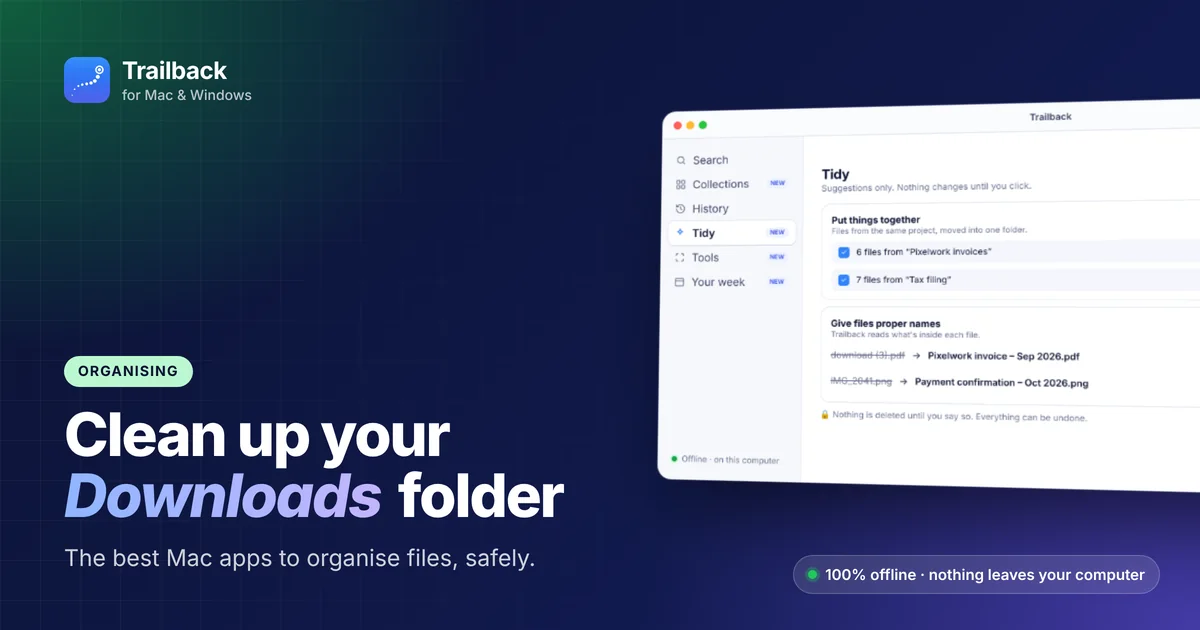
Best Mac Apps to Organize Files and Clean Up Your Downloads Folder
How to turn a Downloads folder full of "download (3).pdf" into something you can actually use, with built-in tools and the best Mac apps.