How to Let Claude, Codex or Cursor See What You Worked On (Privately)
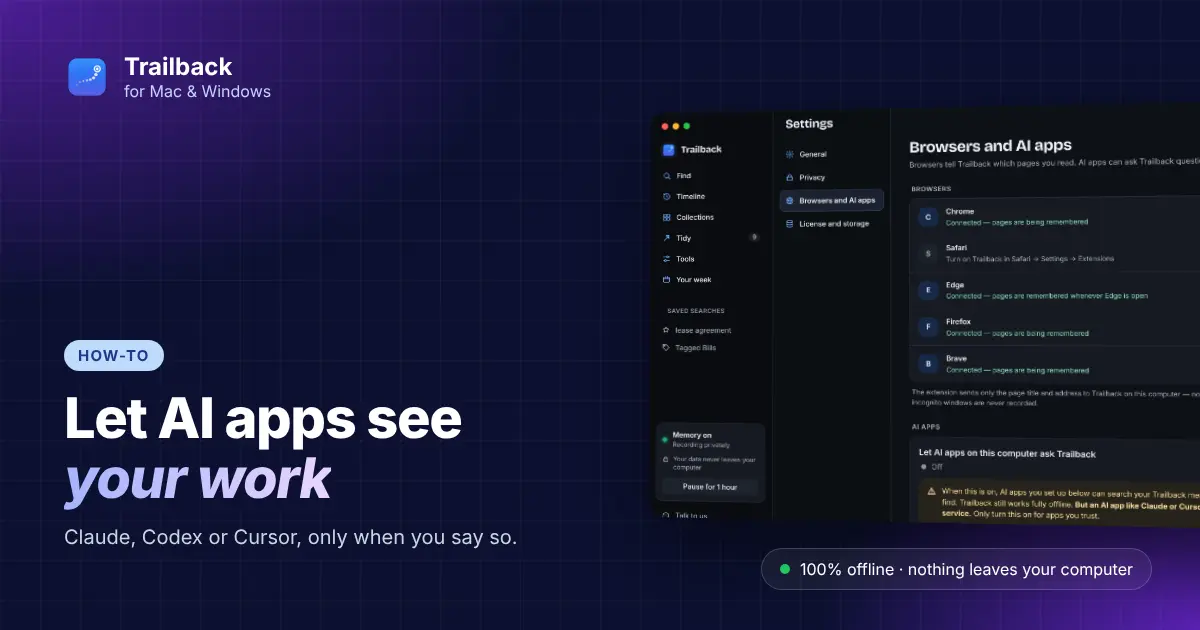
AI apps are good at writing and reasoning, but each chat starts knowing nothing about your day. You end up explaining: which files you touched, which page had the answer, what you were doing before lunch. Your computer already knows all of that, if something was keeping track.
Trailback, our app for Mac and Windows, keeps track. It remembers the pages you read, the files you opened and the screenshots you took, privately on your computer. From version 2.8 it can also answer questions from an AI app on the same computer: Claude Desktop, Codex or Cursor. This page shows how to set that up, and is plain about what it means for your privacy.
What you can ask once it is connected
- "What did I work on yesterday? Write it as a short update for my team."
- "Which files did I change for the website redesign this week?"
- "I read a page about tax deadlines on Tuesday. Find it and give me the link."
- "Write a daily journal for Monday to Friday, in my time zone."
The AI app asks Trailback, Trailback answers from its memory on your computer, and the AI writes the reply. It can ask for a single day, a range of dates, or a summary day by day.
Set it up in three steps
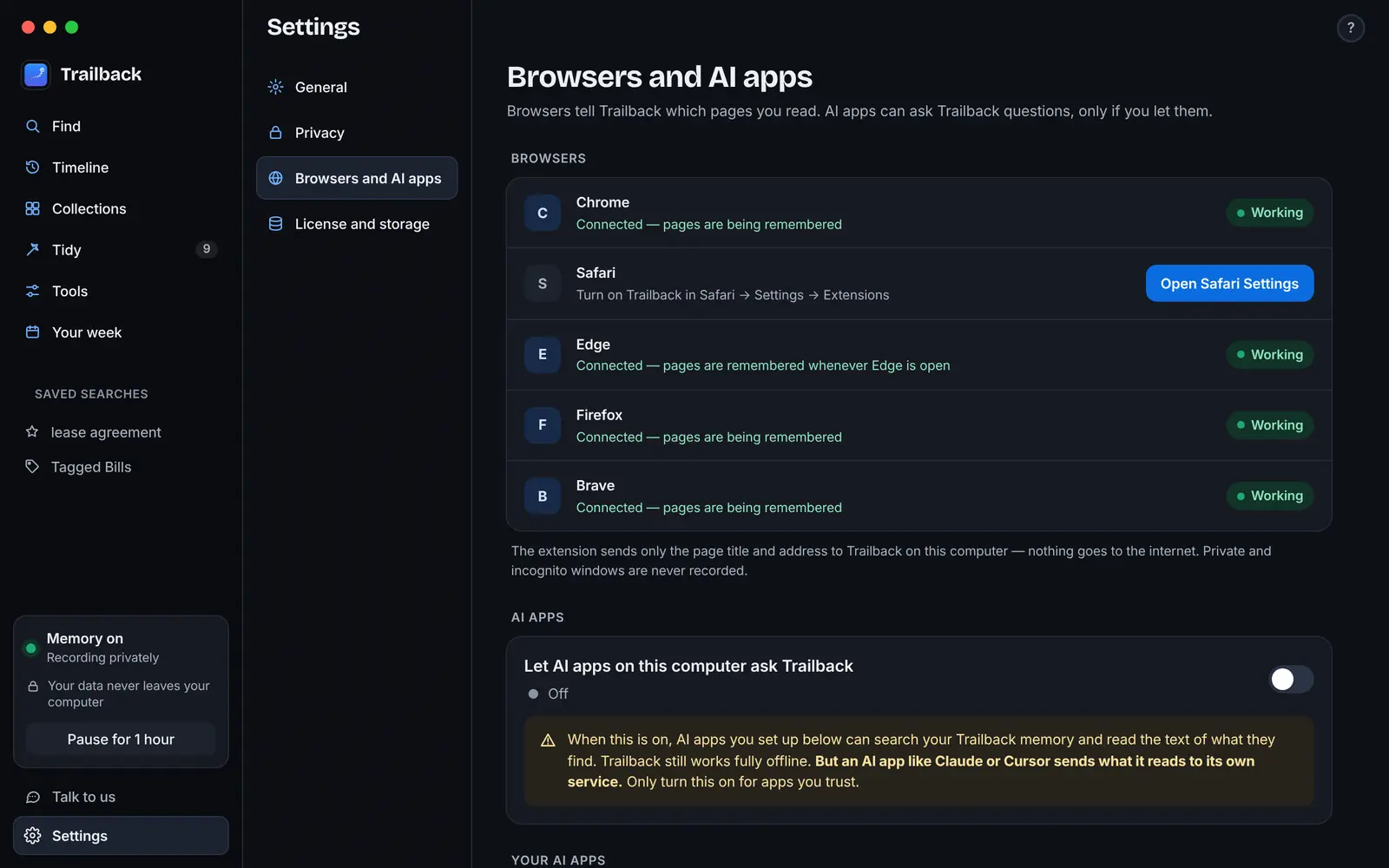
- 1. Open Trailback's Settings and choose Browsers and AI apps. Turn on "Let AI apps on this computer ask Trailback". It is off until you do.
- 2. Click Connect next to Claude Desktop, Codex or Cursor. Trailback only shows the button for apps that are installed. It adds itself to that app's settings and keeps a copy of the settings as they were.
- 3. Restart the AI app and ask it something, such as "What did I work on yesterday?". The first time, the AI app asks your permission to use Trailback.
Trailback has to be running for the AI app to reach it. If you want this every day, keep Open at login switched on in Settings.
What leaves your computer, plainly
Trailback itself still works fully offline and never goes online to answer. But an AI app such as Claude or Cursor sends what it reads to its own service, under its own privacy policy. So:
- With the switch off (the normal state), nothing is shared with any AI app.
- With the switch on, only the answers to the questions the AI app asks leave your computer, and they go to that AI app's service, not to us. We never see them.
- We cannot delete anything from an AI company's service once it has read it. Only connect AI apps you trust.
What the AI can never see
- Passwords, card numbers, keys and one-time codes. Trailback does not record them in the first place, and checks again on the way out.
- Your Private folder, and any app, website or folder you told Trailback to leave out.
- Anything you switched off for AI apps. You choose which kinds of things they may see (web pages, files, screenshots, copied text) and how far back.
Every question an AI app asks is listed in Settings, under Browsers and AI apps. You can block one app or turn the whole thing off at any time.
A good first use: the daily work journal
The most popular use is a short journal of the day, written for you each evening: what you worked on, when and for how long. It is handy for timesheets and client updates, which is why it suits freelancers. The step-by-step version, with a prompt to copy, is on the help page a daily work journal written for you.
Prefer not to connect anything?
You do not have to. Trailback's own Timeline already answers "what was I working on?" without any AI: see how to see what you were working on yesterday. You can also save a Day report as a text file (Settings, License and storage, Export memory) and paste only the parts you choose into a chat.
How this compares with other ways
| Way | What the AI learns | Good to know |
|---|---|---|
| Explain your day by hand | Only what you type | Private, but slow and easy to get wrong |
| Screen recording apps | Whatever was on your screen | Captures everything, including things you did not mean to share |
| Trailback, connected | Answers to the questions it asks, within the limits you set | Off until you turn it on. Secrets and your Private folder stay hidden |
| Trailback Day report, pasted | Only the text you paste | You see every word before the AI does |
More on how Trailback compares with apps that record the screen is on the compare page, and there is background in a searchable history of your computer.
Find anything on your computer by describing it.
Files, PDFs, the words in your screenshots and the pages you visited. 100% offline. Your data never leaves your computer.
Trailback - a searchable memory of your computer activity
Frequently asked questions
Does Trailback send my data to Claude or any AI?
Not by itself. The switch is off until you turn it on. When it is on, an AI app on your computer can ask Trailback questions, and whatever it reads in the answers goes to that AI app's own service.
What is MCP?
MCP (Model Context Protocol) is the standard way AI apps such as Claude, Codex and Cursor connect to other apps. Trailback uses it so those apps can ask what you worked on. You do not need to understand it to set this up.
Can the AI see my passwords?
No. Passwords, card numbers, keys and one-time codes are never recorded by Trailback in the first place, and they are hidden again on the way out. Your Private folder is always hidden from AI apps too.
Does it work with ChatGPT?
The Connect button covers Claude Desktop, Codex and Cursor. With ChatGPT you can still save a Day report from Trailback and paste it into a chat.
Pavan is the founder of Trailback, a private, offline app for Mac and Windows that helps you find anything on your computer by describing it. He builds it at Hara Infotech in Hyderabad.
Keep reading
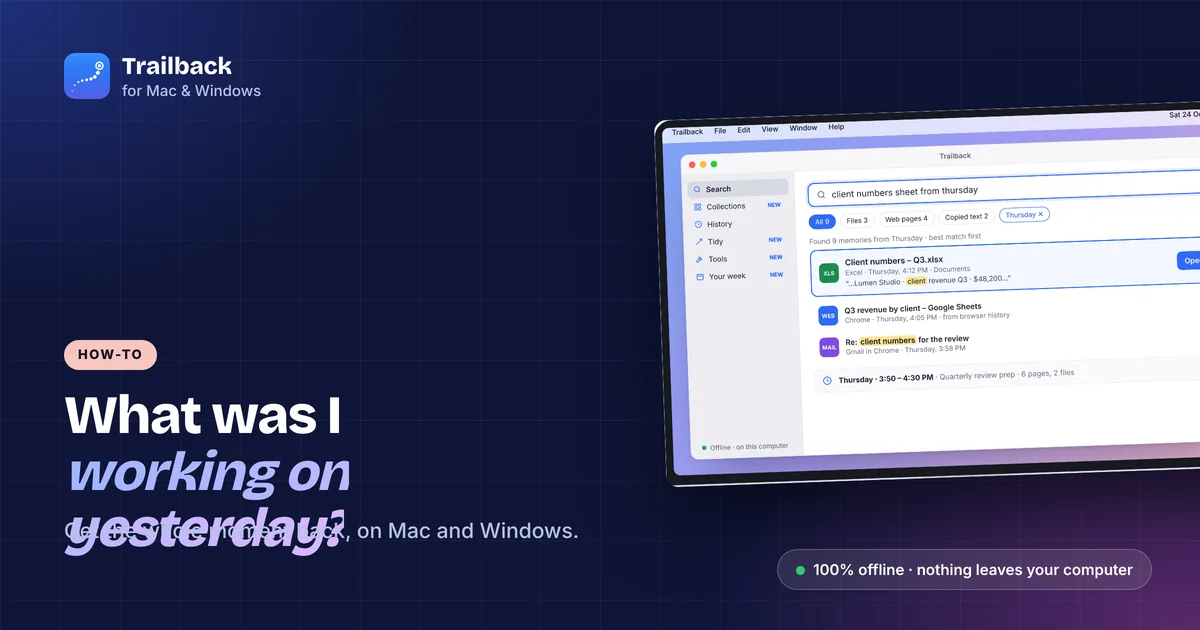
How to See What You Were Working On Yesterday (Mac and Windows)
Monday morning, blank desk. Here's how to get yesterday afternoon back, files, pages and all.
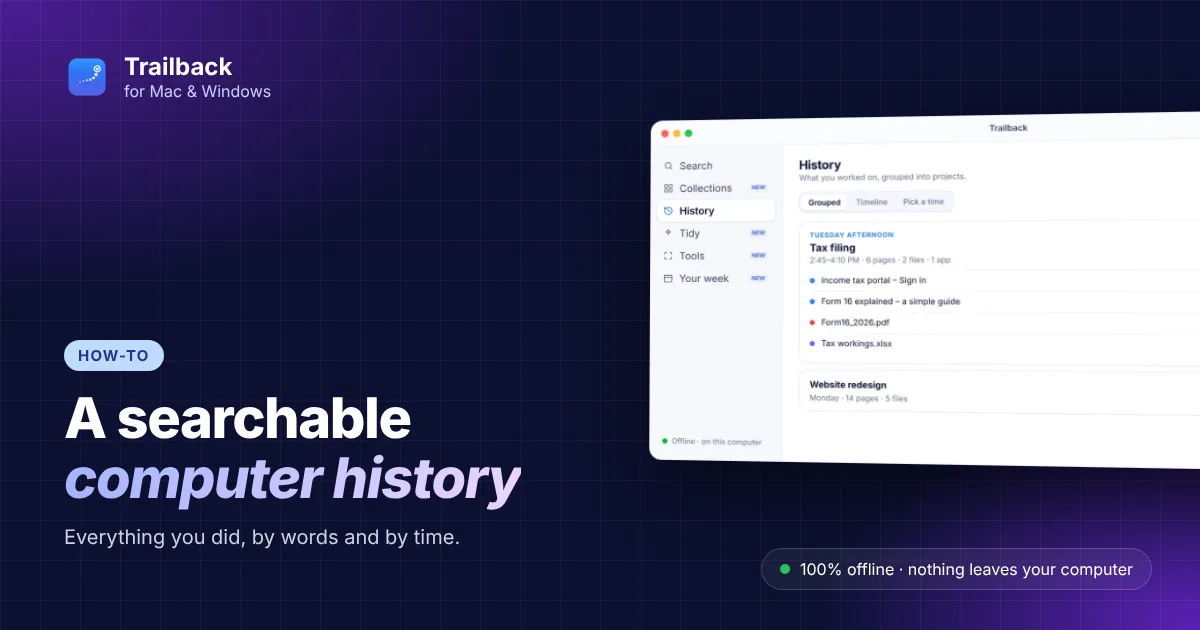
How to Get a Searchable History of Everything You Did on Your Computer
Browser history, Recents and clipboard each keep a little. Here's how to get one searchable history of everything you did, by words and by time.
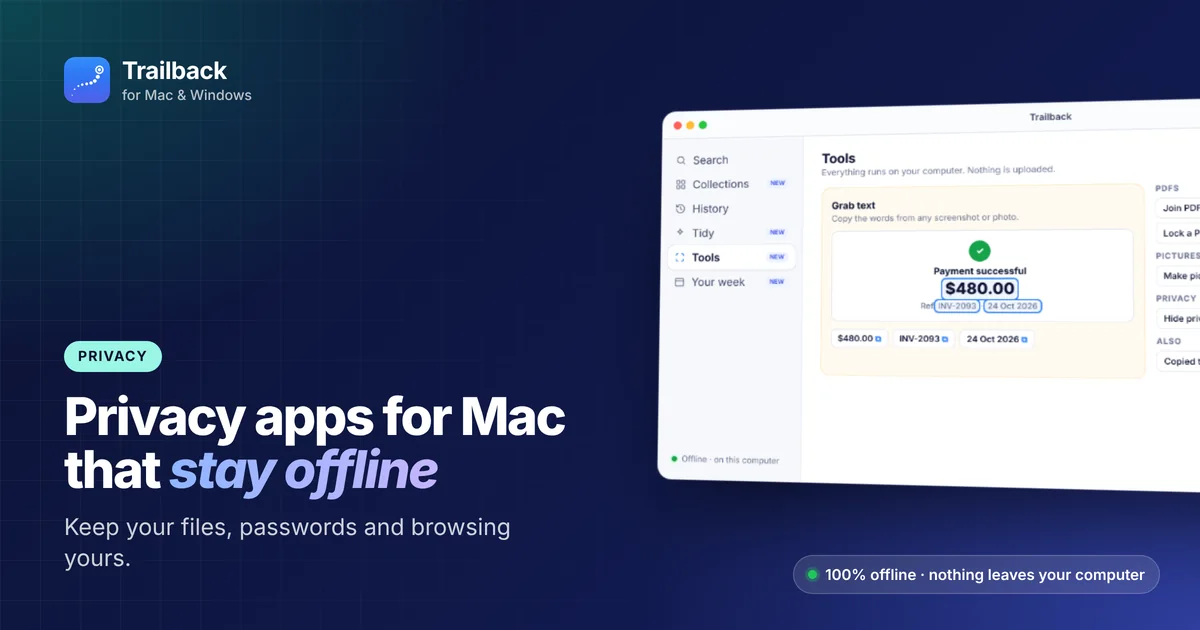
Best Privacy Apps for Mac: Offline Tools That Keep Your Data Yours
The apps and settings that keep your files, passwords and browsing private on a Mac, with a focus on tools that work offline.