How to Rename Messy Downloads Automatically (Without Breaking Anything)

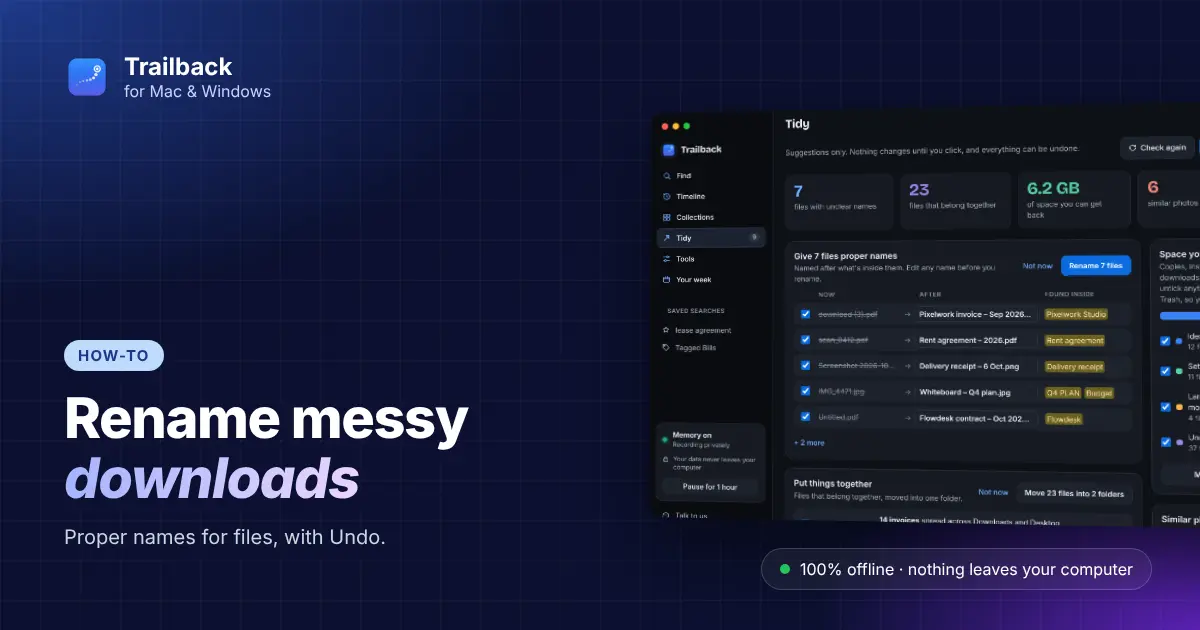
Open your Downloads folder and read the names. download (3).pdf. scan0001.pdf. IMG_4471.jpg. document.pdf. Untitled.pdf. None of them says what the file is, so the only way to find the right one is to open them one by one.
Proper names fix that. The trouble is that renaming by hand is slow, and renaming by rule can go wrong. Here are four ways to do it on Mac and Windows, and how to avoid breaking anything on the way.
First: what can go wrong
- Changing the ending. The part after the last dot (.pdf, .docx, .jpg) tells the computer which app opens the file. Change the name, keep the ending.
- Renaming files something else depends on. A file inside a project folder, a picture linked from a document, a file an app made for itself. If another file points to it by name, renaming breaks the link. Stick to loose files in Downloads, Desktop and Documents.
- Letters Windows does not allow. A name cannot contain \ / : * ? " < > or |. This matters if a file may ever move to a PC.
- No way back. A rule that renames 400 files wrongly is worse than no rule. Whatever you use, make sure you can undo it.
1. By hand, several at once
On a Mac: select the files in Finder, right-click and choose Rename. You can replace text in the names, add text before or after, or give them all one name with a number.
On Windows: select the files in File Explorer and press F2. Type a name and press Enter. Windows calls them Name (1), Name (2) and so on. For patterns, PowerRename in Microsoft's free PowerToys does search and replace across many names, with a preview.
Good for: a batch that should share one name, like photos from one event. Not for: twenty different documents, because you still have to open each one to know what it is.
2. By rule, in the background
On a Mac, Hazel watches a folder and applies rules you write: "if the name contains invoice, move it to Bills and add the date". It is powerful and well liked, and it is a paid app. Folder Actions with Automator or Shortcuts can do simpler versions for free, with more setup.
Good for: files that arrive with predictable names from the same place every month. Not for: files whose names carry no clue, because a rule can only work with what is in the name or the file's details. You also need to write and test the rules yourself.
3. As you save
The cheapest fix is to name the file in the Save box instead of accepting whatever the website offers. Most browsers can ask where to save each download (look for it in the browser's download settings). It takes five seconds and saves five minutes later. It does nothing for the 600 files already there.
4. By what is inside: Trailback's Tidy
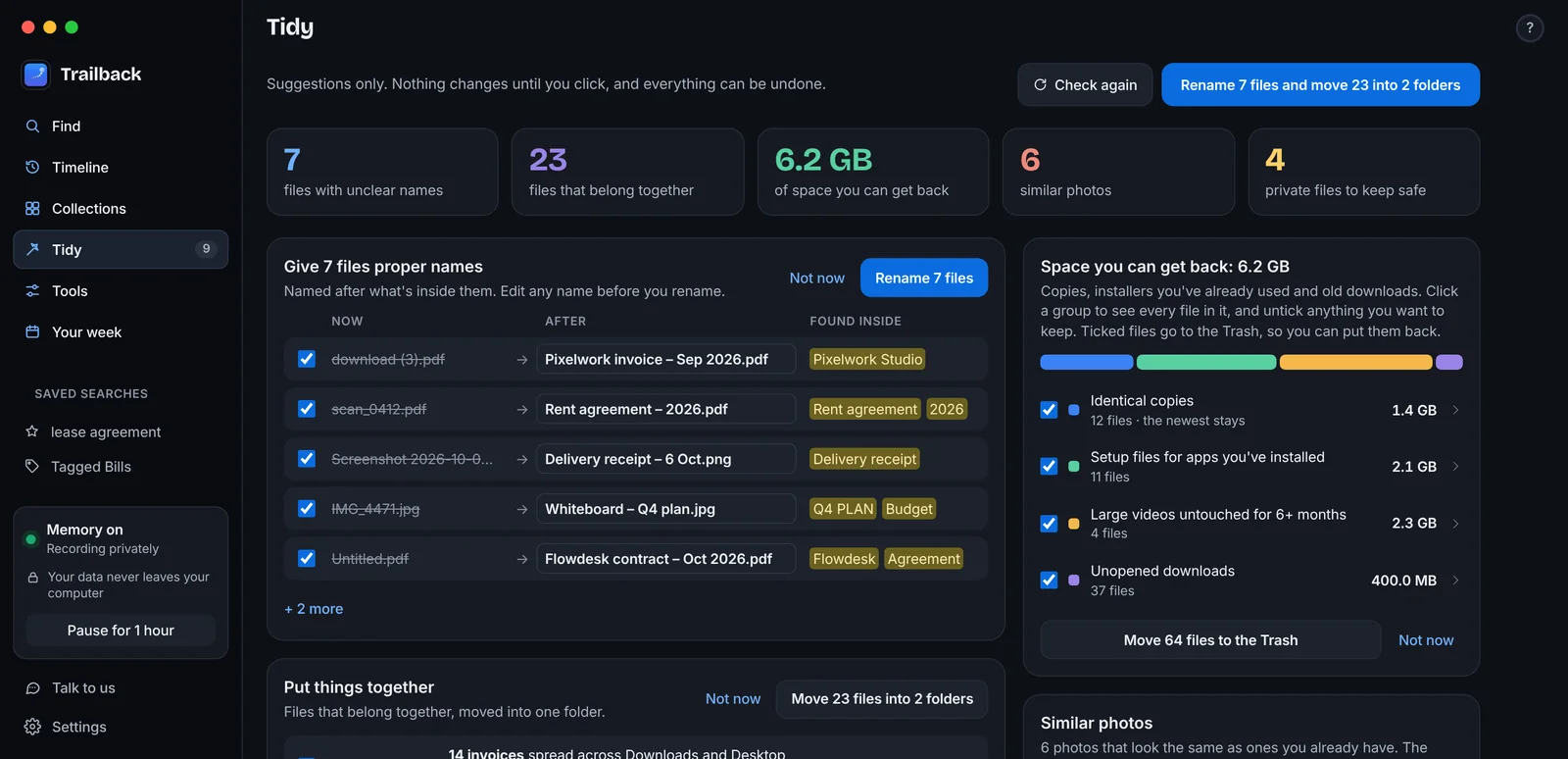
Trailback is our app for Mac and Windows that remembers your files, pages and screenshots so you can find them by describing them. Because it has already read the words inside your files, its Tidy screen can suggest proper names for the ones with unclear names:
| Before | After |
|---|---|
download (3).pdf |
Pixelwork invoice – Sep 2026.pdf |
scan0412.pdf |
Rent agreement – 2026.pdf |
Screenshot 2026-10-06 at 14.02.11.png |
Delivery receipt – 6 Oct.png |
IMG_4471.jpg |
Whiteboard – Q4 plan.jpg |
What keeps it safe:
- Suggestions only. Nothing changes until you click. You can edit any name first, or untick a file.
- Only names nobody chose. It looks at names like download (3), scan0001, IMG_4471 or a long code. A name you typed yourself is left alone.
- Only when it is sure. If the words inside do not make the file's purpose clear, no name is suggested.
- Undo, even later. Every rename is written down first, so it can be undone, even after you restart the computer.
- Only your own folders. Downloads, Desktop and Documents. Never hidden files, system folders, files that are open in another app, or files that are only in the cloud.
- The ending is kept, and letters that Windows does not allow are left out of the new name.
After a rename, the same description still finds the file in Trailback. Invoices in other languages get a name in their own language. And it all happens on your computer: nothing is uploaded.
Where it is weaker: it does not run rules you write, and it will not move files into a folder structure of your design the way Hazel can. It suggests, you approve.
Which way fits?
| Way | Best for | Reads what is inside | Undo |
|---|---|---|---|
| By hand (Finder, File Explorer) | One batch with a shared name | No | Straight after only |
| Rules (Hazel, Folder Actions) | Predictable files, every month | Partly, if you write the rule | Depends on the rule |
| Naming as you save | New downloads | You do | Not needed |
| Trailback Tidy | A pile of files with unclear names | Yes | Yes, even after a restart |
Keep it tidy afterwards
Once the names make sense, the rest gets easier: see how to organize files on a Mac and how to find a file you downloaded. If your pile is mostly papers with names like 1-s2.0-S0149.pdf, Trailback for researchers is written for you. To see how Trailback sits next to other apps, there is one table on the compare page.
Find anything on your computer by describing it.
Files, PDFs, the words in your screenshots and the pages you visited. 100% offline. Your data never leaves your computer.
Trailback - a searchable memory of your computer activity
Frequently asked questions
Can I rename files automatically by what is inside them?
Yes. Trailback's Tidy reads the words inside a file and suggests a proper name, such as an invoice named after the company and the month. Nothing is renamed until you click, and every rename can be undone.
Is it safe to rename downloaded files?
For documents, PDFs and pictures, yes. Keep the ending of the name (such as .pdf) the same, and leave alone files that an app or a project depends on, such as files inside a project folder.
How do I rename several files at once on a Mac?
Select the files in Finder, right-click and choose Rename. You can replace text, add text, or give them one name with a number.
How do I rename several files at once on Windows?
Select the files in File Explorer and press F2. Type a name and press Enter, and Windows numbers them. For patterns, Microsoft's free PowerToys includes PowerRename.
Pavan is the founder of Trailback, a private, offline app for Mac and Windows that helps you find anything on your computer by describing it. He builds it at Hara Infotech in Hyderabad.
Keep reading
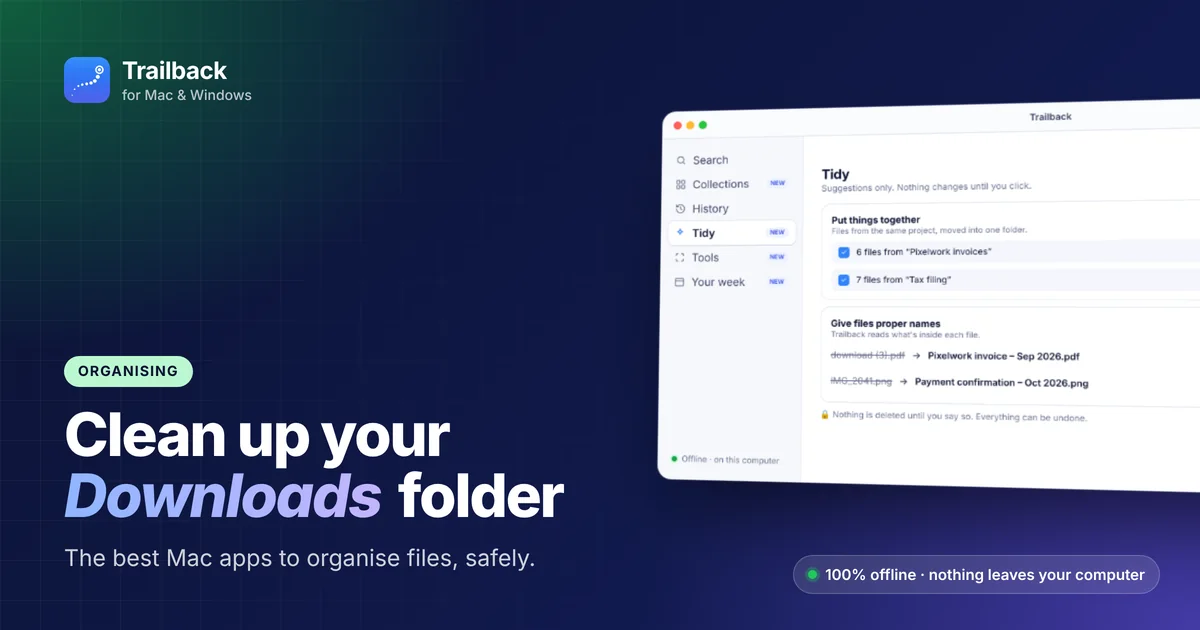
Best Mac Apps to Organize Files and Clean Up Your Downloads Folder
How to turn a Downloads folder full of "download (3).pdf" into something you can actually use, with built-in tools and the best Mac apps.
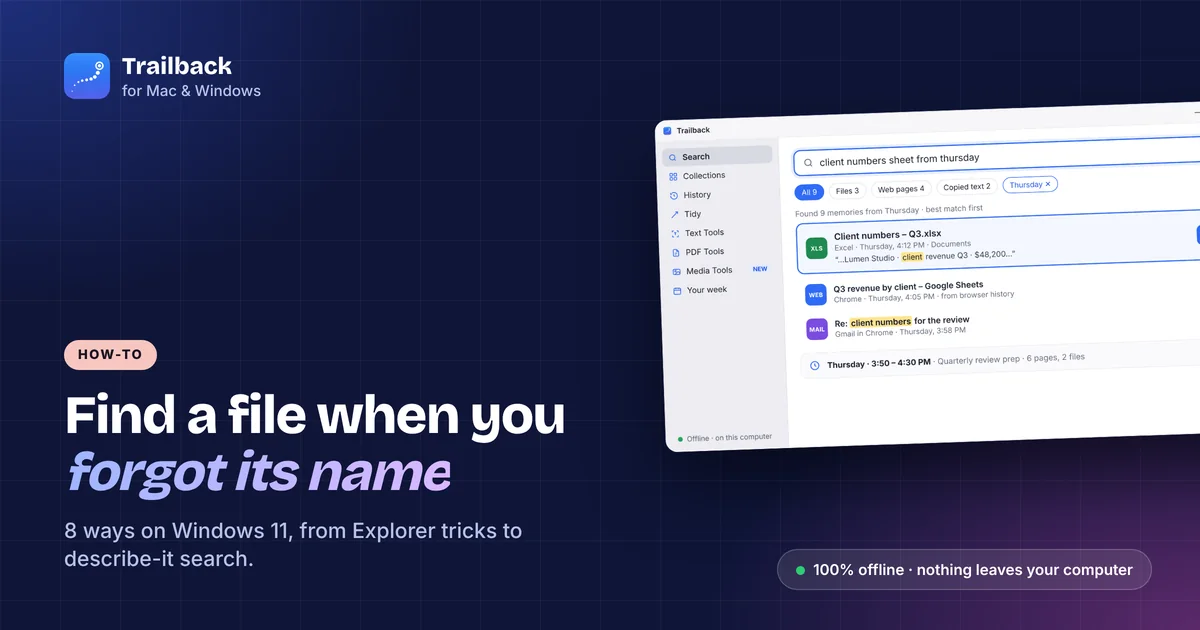
How to Find a File You Downloaded Last Week (Mac and Windows)
Five ways to find a download from last week, even when you forgot the name or cleared your browser history.
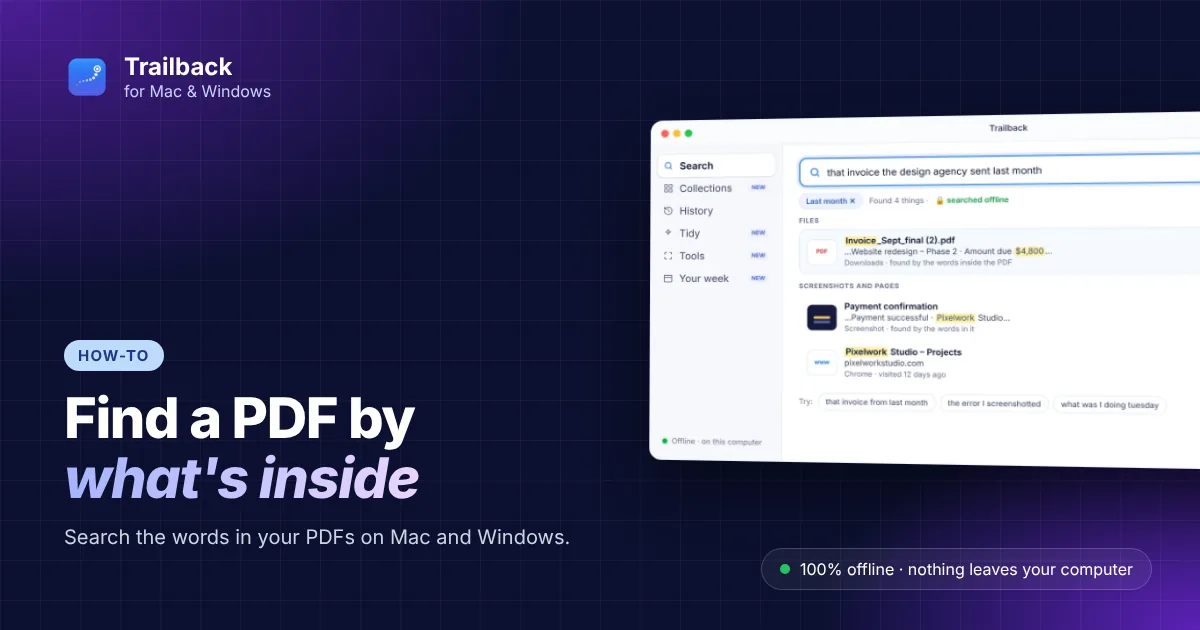
How to Find a PDF by Its Content on Mac and Windows
Dozens of PDFs called document.pdf? How to find the right one by the words inside it, on Mac and Windows.