Search Files and Screenshots in Japanese, Chinese and 8 Other Languages

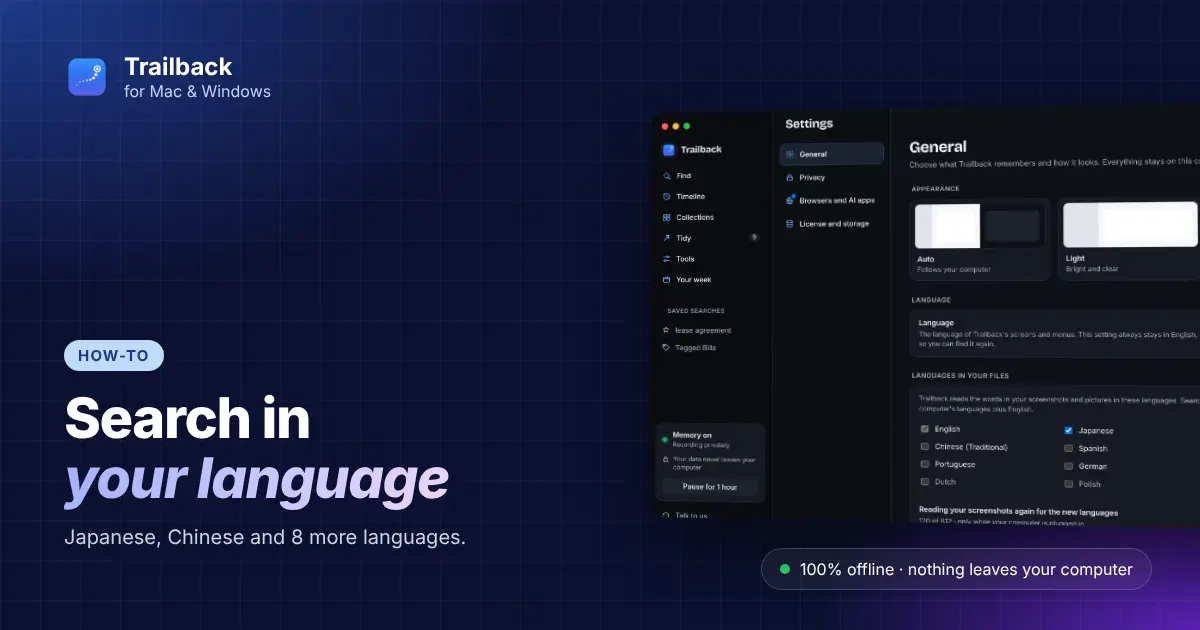
Most search tools were built around English. That shows as soon as your files are in Japanese, Chinese, German or Polish: a word you can see in a screenshot is "not found", a file name typed in full-width letters does not match, or a search only works if you type every accent exactly.
This page explains why that happens, what the built-in searches on Mac and Windows can do, and how Trailback, our app, handles 10 languages offline.
Why search struggles outside English
- No spaces between words. Japanese and Chinese sentences run together. A search tool that splits text at spaces sees a whole sentence as one long "word", so the word you typed is never found inside it.
- Two widths of the same letter. PDF and PDF look alike but are different characters to a computer. The same goes for half-width and full-width katakana.
- Two scripts for the same word. りんご and リンゴ are the same word in hiragana and katakana.
- Accents and special letters. café and cafe, Straße and strasse, Łódź and lodz.
- Text inside pictures. A screenshot is a picture. Its words can only be searched if something has read them, in the right language.
What Mac and Windows do by themselves
On a Mac, Spotlight handles Japanese and Chinese text in file names and inside documents well, and on recent versions of macOS it reads the text in pictures in many languages. It works best when you type the word exactly as it is written.
On Windows, File Explorer searches file names and the words inside documents in any language. It does not read the text inside pictures, so a Japanese screenshot is not searchable there. See how to search the text in screenshots on Windows.
Neither one helps with "the invoice from last month" typed in your own language, because neither remembers when you had a file open.
How Trailback handles it
| You type | It also finds | Why |
|---|---|---|
| 請求書 | 今月の請求書を送付します | Japanese and Chinese are matched inside a sentence, with no spaces needed |
| りんご | リンゴ | Hiragana and katakana match each other |
| PDF | Full-width and half-width are treated as the same | |
| strasse | Straße | ß, ł, æ, œ and ø are matched with their plain forms |
| cafe | café | Accents are ignored |
| 請求書 先週 | Invoices from last week | Time words in your language become a date filter |
Time words work in the other languages too: "la semana pasada", "letzte Woche", "le mois dernier". You do not need to switch to English to say when.
Turn on the languages in your pictures
Reading the words in a screenshot takes a little work for each language, so you choose which ones to read. Open Settings, then General, then Languages in your files, and tick the languages that appear in your screenshots and pictures.
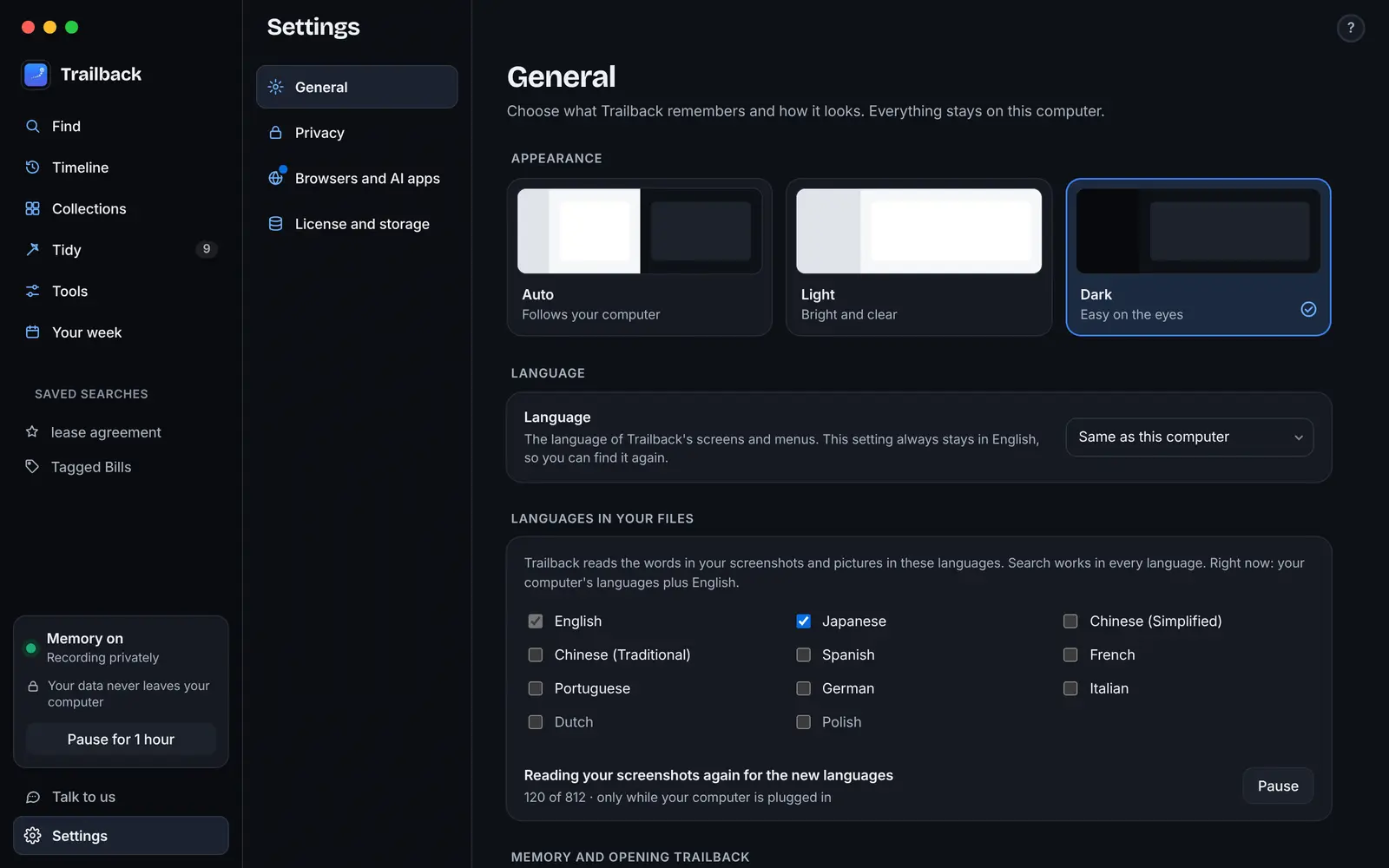
- To start with, Trailback reads your computer's own languages plus English.
- When you add a language, it reads your existing screenshots again in the background, one at a time, only while the computer is plugged in. You can pause it, and Settings shows how far it is.
- The choices are: English, Japanese, Chinese (Simplified and Traditional), Spanish, French, Portuguese, German, Italian, Dutch and Polish.
The words inside documents and PDFs need no setting. They are searchable in whatever language they are written in.
The app in your language
From version 2.8 the app's own screens are in the same 10 languages, and it follows your computer's language by itself. Small things follow too: an invoice written in French gets a suggested file name in French when you use Tidy, and due dates are found from labels in French, German, Spanish, Italian, Polish, Japanese and Chinese.
What it does not do yet
- Finding by meaning works best in English. In English, Trailback can find a file even when your words differ from the words in it. In other languages, use a word that is actually in the file or its name.
- Other languages in pictures. Text in pictures is read in the languages listed above. Korean, Arabic or Hindi in a screenshot is not read yet.
- It does not translate. A search in Japanese finds Japanese text, not the English version of the same document.
It stays on your computer
Nothing is sent anywhere to be read or translated. Every language works with Wi-Fi off, and your data never leaves your computer.
If your work means reading papers in more than one language, see Trailback for researchers. For the general how-to, there is how to search the text in screenshots on a Mac and how to find a PDF by its content, and the compare page sets Trailback beside other search apps.
Find anything on your computer by describing it.
Files, PDFs, the words in your screenshots and the pages you visited. 100% offline. Your data never leaves your computer.
Trailback - a searchable memory of your computer activity
Frequently asked questions
Can I search Japanese text inside screenshots?
Yes. On a Mac, Spotlight and Photos can read Japanese in pictures on recent macOS. Trailback reads it on Mac and Windows once Japanese is ticked under Languages in your files, and it then finds the words inside any sentence.
Which languages does Trailback support?
The app's screens are in English, Japanese, Chinese, Spanish, French, German, Portuguese, Italian, Dutch and Polish. It reads text in pictures in those languages, with Chinese in both Simplified and Traditional.
Do I have to type accents to find a file?
No. In Trailback, cafe finds café, strasse finds Straße and lodz finds Łódź. It works the other way round too.
Does searching in another language need the internet?
No. Trailback works fully offline in every language. Nothing is sent anywhere to be translated or read.
Pavan is the founder of Trailback, a private, offline app for Mac and Windows that helps you find anything on your computer by describing it. He builds it at Hara Infotech in Hyderabad.
Keep reading
How to Search the Text Inside Screenshots on Mac
You took a screenshot so you wouldn't forget. Here's how to find it again by the words in it.
How to Search Text Inside Screenshots on Windows 11
Your screenshots are full of text you can't search. Four ways to fix that on Windows, including one that searches all of them at once.
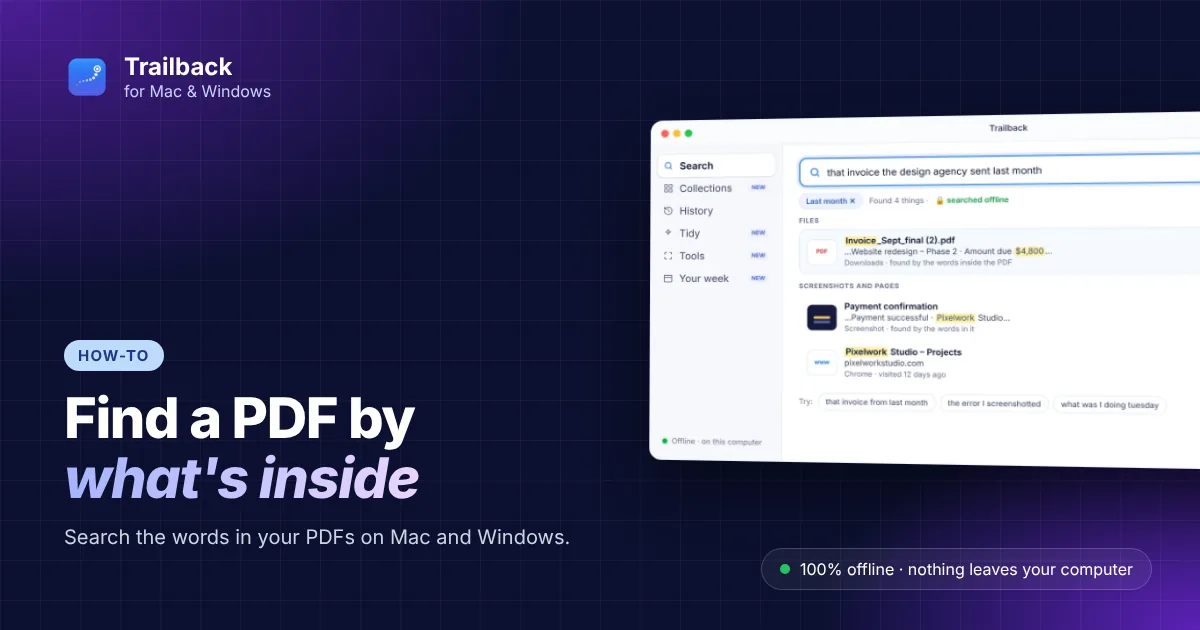
How to Find a PDF by Its Content on Mac and Windows
Dozens of PDFs called document.pdf? How to find the right one by the words inside it, on Mac and Windows.